

TeaTV Keeps Crashing? Quick Fixes That Work

Nothing kills a movie night faster than TeaTV crashing every time you open it. One minute you’re browsing the latest titles, the next you’re staring at your home screen wondering what happened.
If TeaTV keeps crashing on your phone, Firestick, or Android TV, here’s the short answer: force-stop the app, clear its cache, and restart your device. That trio fixes the majority of crashes in under two minutes. If the crashing continues, work through the ordered fixes below — most of them take less than a minute each.
Table of Contents
Identify Your Crash Type (60 Seconds)
Not all crashes are the same, and knowing which one you have saves you from trying fixes you don’t need:
- Crashes on launch: the app closes the moment you open it (or never opens at all). Usually a corrupted cache, a bad update, or a permissions problem.
- Crashes when opening a stream: the app works fine for browsing but dies when you pick a title. Often a player issue or a memory problem.
- Freezes first, then crashes: the app hangs for a few seconds and then closes. Classic sign of low storage or RAM.
Note where you are when it crashes — it tells you which fix to try first.
Fix 1: Force-Stop the App and Reopen It
A crashed app can leave a broken process running in the background. Go to Settings → Apps → TeaTV → Force Stop, then reopen the app. This clears the bad state without touching any of your data. It’s the fastest fix and solves a surprising number of one-off crashes.
Fix 2: Restart Your Device
It sounds basic, but a full restart clears temporary memory, reloads system services, and fixes the odd app glitch. On Android phones, hold the power button and tap Restart. On Firestick, go to Settings → My Fire TV → Restart — or unplug it for 30 seconds for a full power cycle. Don’t skip this step: it genuinely fixes crashes that nothing else explains.
Fix 3: Clear TeaTV’s Cache
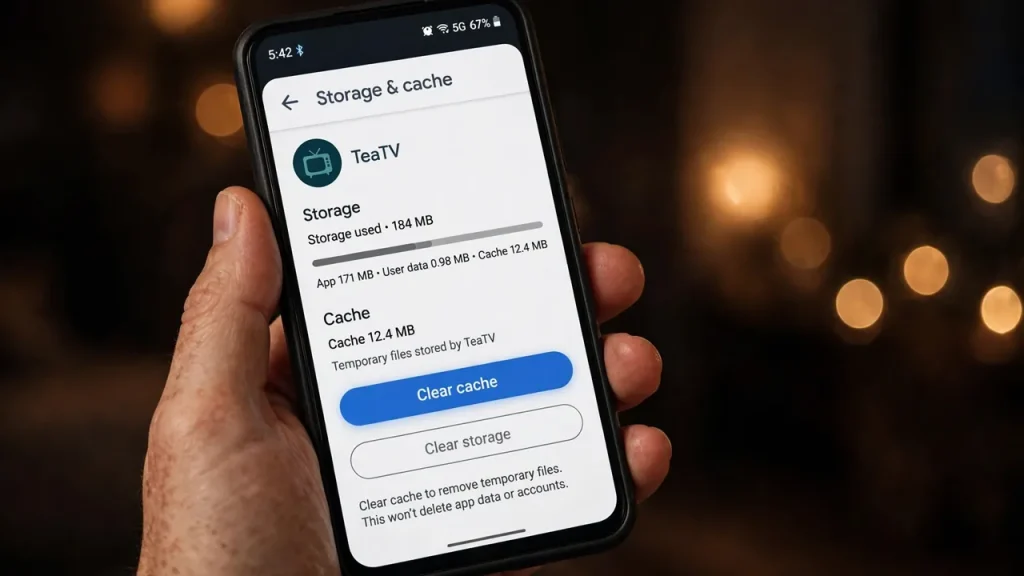
Corrupted cached data is the single most common cause of repeated TeaTV crashes. Clearing it is safe — your watchlist and settings stay intact.
- Android phone/tablet: Settings → Apps → TeaTV → Storage → Clear Cache
- Firestick: Settings → Applications → Manage Installed Applications → TeaTV → Clear Cache
- Android TV: Settings → Apps → TeaTV → Clear cache
Open TeaTV again right after. If it was crashing because of stale cache, this is usually where it stops. These are the same steps Google’s official steps for fixing an app that crashes recommend for any crashing Android app.
Fix 4: Clear Data for a Fresh Start
If clearing the cache didn’t help, Clear Data (same menu as above) resets the app to a fresh-install state. Heads-up: this wipes your watchlist, viewing history, and settings inside TeaTV. It’s a bigger hammer, so try the cache first — but when an app’s saved data itself is corrupted, this is the fix.
Fix 5: Free Up Storage Space
Android apps crash when storage runs critically low, and Firesticks are the worst offenders — most Fire TV models ship with only about 5–6 GB of usable space. Go to your device’s storage settings and check how much free space you have. Uninstall apps you don’t use, delete old downloaded videos, and clear other apps’ caches. TeaTV needs breathing room, especially the mod builds. If your Firestick is nearly full, freeing up a couple of gigabytes alone can stop the crashes — see our TeaTV for Firestick guide for storage tips specific to Fire TV devices.
Fix 6: Update TeaTV to the Latest Version
Old versions crash. Bug fixes land in new releases, and an outdated build can break when the app’s back-end services change. Check which version you’re running (Settings → About inside TeaTV) and update to the latest release if you’re behind — our latest version and update guide walks you through it. Avoid “update” prompts from random pop-up sites; stick to sources you already trust.
Fix 7: Reinstall from a Trusted Source
A corrupted install — interrupted download, partial update, tampered file — can crash no matter what you clear. Uninstall TeaTV completely, restart your device, then install a fresh copy. Use the same trusted source you got it from before, and follow the safe steps in our TeaTV APK download guide. If you’re coming from a mod build, this is also the moment to consider whether the mod itself is the problem (more on that below).
Fix 8: Check TeaTV’s App Permissions
On Android, an app that loses the permissions it needs can crash on launch. Go to Settings → Apps → TeaTV → Permissions and make sure Storage (and Network, where shown) are allowed. This happens more often than you’d think after an OS update resets app permissions quietly in the background.
Fix 9: Disable Your VPN and Ad-Blocker Temporarily
VPNs don’t cause crashes by themselves, but a blocked or overloaded VPN server can make TeaTV hang while loading content and then close. Similarly, aggressive system-wide ad-blockers can interfere with the app’s content loading. Turn them off, open TeaTV, and see if the crashing stops. If it does, switch to a different VPN server or whitelist TeaTV in your ad-blocker before turning them back on.
Fix 10: Device-Specific Fixes
- Firestick: disable Collect App Usage Data (Settings → Preferences → Privacy Settings) — on low-memory Fire TV sticks this background service can push the device over the edge. Also check for a Fire OS update under Settings → My Fire TV → About.
- Android TV / TV box: disable unused background apps and turn off any “auto-start” apps you don’t need. Cheap TV boxes ship with very little RAM.
- PC (emulator): open your emulator’s settings and allocate more RAM to the virtual device (4 GB minimum is a good target). Emulator crashes are almost always resource-related — our TeaTV for PC guide has the exact settings.
Why Does TeaTV Keep Crashing?
The usual suspects, in rough order of likelihood: corrupted cache or app data, an outdated or buggy version, critically low storage or RAM, a corrupted or poorly built mod APK, VPN or ad-blocker interference, and — least common — problems on TeaTV’s own servers. Working the fixes above in order means you check the easy, common causes first instead of reinstalling everything blindly.
One honest note on mods: modified builds add features, but they can also add instability — a mod that wasn’t built cleanly from the latest base version crashes more often. If your crashes started right after switching to a mod build, the build itself is the prime suspect. Our honest safety review covers what to watch for with mod versions.
“TeaTV Not Opening” vs “TeaTV Crashing Mid-Use”
If TeaTV won’t open at all, prioritize Fixes 3, 4, 6, 7, and 8 — the problem is almost always corrupted data, permissions, or a broken install. If the app opens fine but crashes when you play something, prioritize Fixes 2, 5, 9, and 10 — you’re more likely dealing with memory pressure, a player problem, or a network conflict. Trying our buffering fixes is also worth it if playback itself is unstable.
When the Problem Is on TeaTV’s Side
Sometimes nothing on your device is wrong. If TeaTV’s content sources or back-end services are having a bad day, the app can crash or fail across every device at once. Quick test: if you (and people online) suddenly can’t use the app at all after it worked fine yesterday, it’s probably server-side. Wait a few hours before tearing your setup apart — no amount of reinstalling fixes their server.
Stop the Crashes from Coming Back
- Keep TeaTV updated instead of running ancient versions.
- Clear the cache once a month, especially on Firestick.
- Keep at least 2 GB of free storage on your streaming device.
- Don’t install mod updates from random sources mid-week.
- Restart your streaming device weekly — it takes a minute and prevents most “mystery” issues.
Still stuck after all of this? The broader TeaTV not-working fixes guide covers error messages, playback failures, and buffering in more depth — and if the app simply won’t cooperate on your device, our best TeaTV alternatives roundup lists free apps that work the same way. For background on how the app works, see What Is TeaTV.
Frequently Asked Questions (FAQs)
Why does TeaTV keep crashing on my Firestick?
Low storage is the number-one cause on Firestick — most models have only about 5–6 GB of usable space. Free up space by uninstalling unused apps, then clear TeaTV’s cache (Settings → Applications → Manage Installed Applications → TeaTV → Clear Cache) and restart the stick.
Is it safe to clear TeaTV’s data? Will I lose anything?
Clearing the cache is completely safe. Clearing data resets the app and wipes your watchlist, history, and settings inside TeaTV. Always try clearing the cache first, and only clear data if crashes continue.
Should I reinstall TeaTV if it keeps crashing?
Yes — a corrupted install is a common cause of persistent crashes. Uninstall the app, restart your device, and install a fresh copy from the same trusted source you used before. Our download guide has the safe steps.
TeaTV opens fine but crashes when I start a stream. What’s wrong?
That’s usually a memory or player issue, not a broken install. Free up storage, restart the device, and try a different video player inside TeaTV’s settings. Disabling your VPN temporarily is also worth testing.
Will using a VPN stop TeaTV from crashing?
No — a VPN fixes region blocks and ISP throttling, not crashes. In fact, a blocked or overloaded VPN server can make TeaTV hang and close. Rule out the VPN by turning it off before you blame the app.
Does the TeaTV mod APK crash more than the standard version?
It can. Mod builds are unofficial, and a poorly built mod can introduce crashes the standard version doesn’t have. If crashes started right after switching to a mod build, try the standard build or a clean reinstall of the mod from a source you trust.
By Priya Sharma, Senior Content Writer • Reviewed by David Chen, Technical Researcher
About the author: Priya Sharma is a Senior Content Writer covering streaming apps and Android software, with a focus on practical troubleshooting guides.
Reviewed by: David Chen, Technical Researcher, verified the troubleshooting steps and device-specific settings in this guide.
