
TeaTV Subtitles Not Working? Fix It in Minutes

If your TeaTV subtitles are not working — they don’t appear at all, show the wrong language, or drift out of sync — the problem is almost never the app itself. In most cases the subtitle toggle is off, the wrong language is selected, the subtitle file failed to download (“unzip sub” error), or the source link you picked simply has no subtitle track.
The quickest fix: while the video plays, tap the subtitle (CC) icon in the player, turn subtitles ON, and pick your language from the ubtitle list. If nothing shows up, switch to a different source link for the same title, then try downloading subtitles again. The eight fixes below walk you through every cause in order, from the 10-second checks to the full resets.
Table of Contents
Why TeaTV Subtitles Don’t Show (Common Causes)
TeaTV doesn’t host videos — it pulls streams from multiple sources, and each source link carries its own subtitle tracks. That means subtitles can work perfectly for one link and be missing entirely for another. Before changing anything, check which of these matches your case:
- Subtitle toggle is off in the player (most common cause)
- Wrong subtitle language selected in TeaTV Settings
- The source link has no subtitle track at all
- The subtitle file failed to download (the “unzip sub” error)
- Subtitles are out of sync because of player or timing issues
- OpenSubtitles (the subtitle provider) needs a re-login or cache clear
- An external player without subtitle support was set as default
8 Fixes When TeaTV Subtitles Aren’t Working
Work through these in order — most people are fixed by step 2 or 3.
1. Turn the Subtitle Toggle On in the Player
This sounds obvious, but it’s the number one reason subtitles don’t show. Open any movie or episode, tap the subtitle (CC) icon inside the player, and make sure subtitles are switched ON. Then tap the same icon again and select your language from the list. TeaTV remembers your last selection, so if you turned subtitles off once, they stay off until you turn them back on.
2. Choose the Right Subtitle Language in Settings
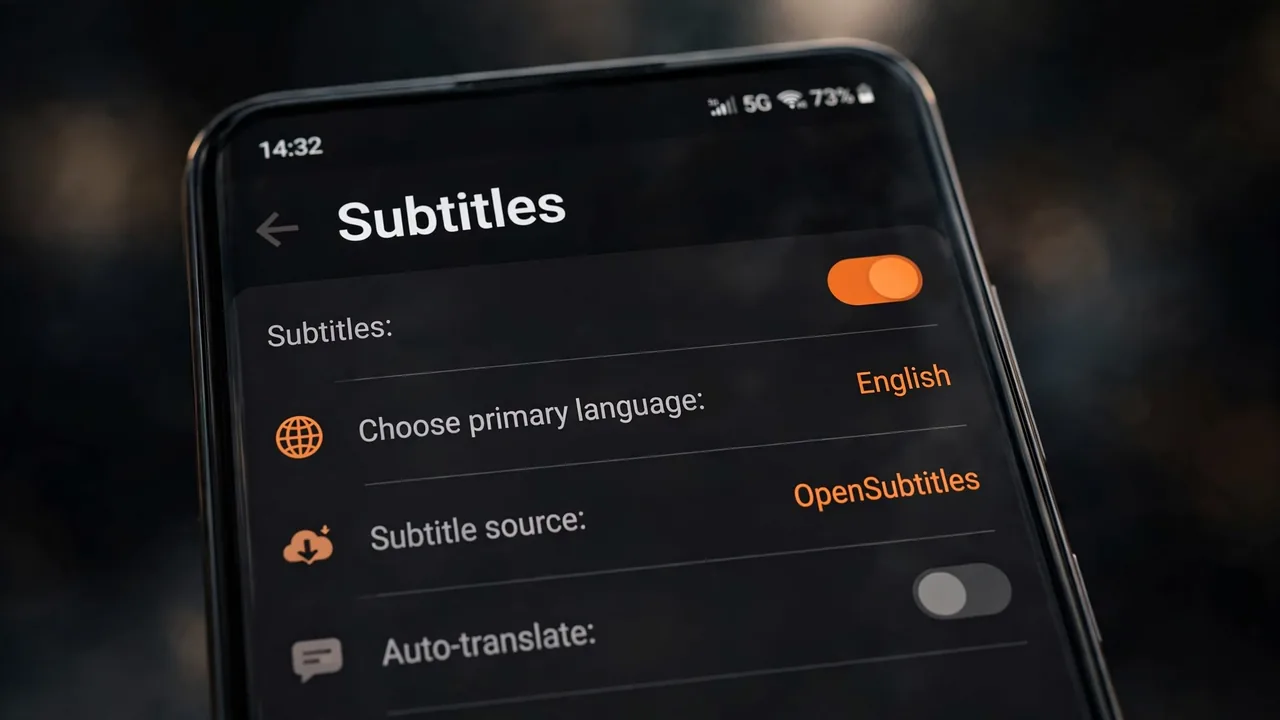
If the subtitle list is empty or only shows languages you don’t read, the app’s primary language setting is probably wrong. TeaTV offers the language option when you first open the app — pick the wrong one and your subtitles will never match.
- Open the TeaTV app and tap the menu (three lines, top left)
- Go to Settings
- Tap “Choose primary language” and select your preferred language
- Go back and start a video — the subtitle list should now show your language
3. Switch to a Different Source Link
Remember: each source link brings its own subtitles. If one link has no English (or your language) track, another link for the same title very often does. This is the fix people overlook the most. Go back to the episode list, pick a different source/host, and check the subtitle icon again. A “no subtitles” link doesn’t mean the app is broken — it means that particular source doesn’t ship subtitles.
4. Download Subtitles Manually From the Player
When the built-in subtitle fetch fails, download a track yourself without leaving the player:
- While playing, tap the subtitle icon
- Look for a download / search subtitles option (on many player versions it pulls from OpenSubtitles)
- Search your movie or episode title, pick your language, and download
- The subtitle file loads into the current playback automatically
If your player version shows an “unzip sub” error instead, see the dedicated section below.
5. Fix Subtitles That Are Out of Sync
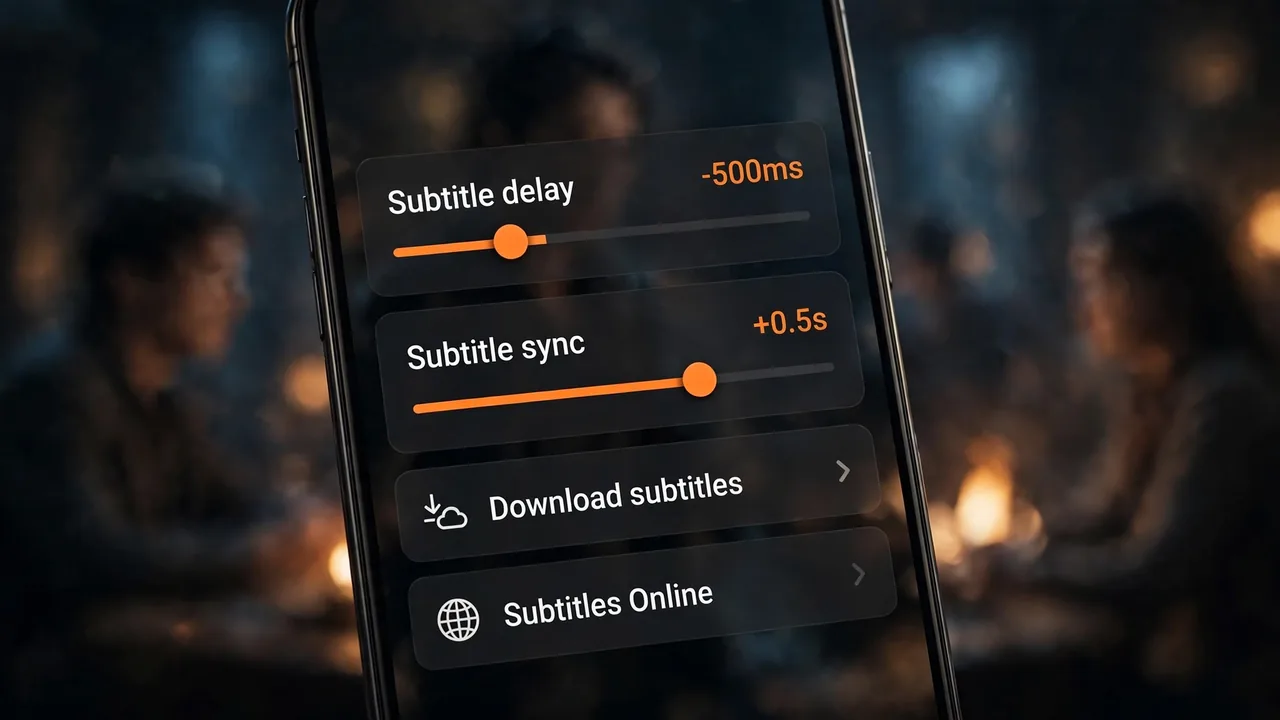
Subtitles appearing but arriving early or late is a timing issue, not a missing-file issue. In the player, tap the subtitle icon and look for subtitle sync / delay / offset controls. Shift the timing forward or backward in small steps (usually 0.5-second increments) until the dialogue lines up. If your player’s sync controls don’t work well on that link, switching to MX Player or VLC gives you much finer subtitle timing control.
6. Switch to an External Player That Supports Subtitles
TeaTV can route playback through an external media player. If the player TeaTV is currently using doesn’t handle subtitles properly, change it:
- Start any video — when prompted, choose TPlayer (TeaTV’s recommended player with full subtitle support) or install MX Player or VLC from your device’s app store
- Set your preferred player as the default when TeaTV asks
- MX Player in particular has a built-in “Subtitles → Subtitles Online” option that downloads subtitles directly if TeaTV’s own fetch fails
Avoid setting a minimal player without subtitle support as the default — it will silently break subtitles for every video.
7. Clear TeaTV’s Cache and Data
Corrupted cached files can break subtitle downloads even when everything else plays fine. This resets TeaTV’s stored settings, so treat it as a mid-level fix:
- Go to your device’s Settings → Apps → TeaTV
- Tap “Storage & cache” (or Data and Cache)
- Tap “Clear cache” first, then “Clear data / Clear storage” if the problem persists
- Reopen TeaTV, re-select your primary language in Settings, and test subtitles again
8. Update TeaTV to the Latest Version
Old TeaTV versions can have broken subtitle providers, expired API keys, or player bugs that newer releases already fixed. If none of the above worked, update to the latest version — our TeaTV Latest Version guide walks through what’s new and how to update safely.
How to Fix the “Unzip Sub” Error on TeaTV
The “unzip sub” error appears when TeaTV downloads a subtitle archive but can’t unpack it. It’s a common complaint and has a reliable workaround:
- Play the video first, then select “Play with sub” — launching playback with subtitles explicitly requested avoids the broken background fetch.
- Log in with your OpenSubtitles account: Go to TeaTV Settings and sign in with your (free) opensubtitles.org account. The fetch then runs through your account and usually succeeds. No credit card is needed — the free tier is enough.
- Use MX Player as a fallback: In TeaTV, copy the stream URL from the Watch Now option, open MX Player → Network Stream, paste the URL, then use menu (three dots) → Subtitle → Subtitles Online to download the track directly. This bypasses TeaTV’s subtitle pipeline entirely.
- If the error started after an update, do the cache-and-data clear from Fix 7 and log in again.
TeaTV Subtitles Not Working on Firestick
On Fire TV Stick the same fixes apply, with two device-specific notes. First, the subtitle toggle on TV remotes is easier to miss — open the player controls with the remote’s menu/OK button and look for the subtitle (CC) icon before assuming anything is broken. Second, Firestick’s default player setting sometimes resets after Fire OS updates; if subtitles worked before an update and broke after it, re-check which player TeaTV is set to use (TPlayer or MX Player, not a barebones player). Our TeaTV on Firestick install guide covers player setup on Fire TV.
When Subtitles Won’t Work: What to Do Instead
If you’ve tried everything and a particular title still has no subtitles, it’s usually the source, not your setup. Three honest options: pick a more popular source link (top-listed links are scraped from more complete hosts), watch with auto-generated captions if the player’s external player supports them, or report the pattern — if subtitles fail across many titles, your subtitle provider may be temporarily down; waiting a few hours and clearing the cache (Fix 7) often resolves it. For other playback problems, our TeaTV not working fixes guide covers buffering, black screens, and crashes. If you’re also wondering is TeaTV safe to keep using, see our honest safety review — and the homepage has all of our latest TeaTV guides.
Frequently Asked Questions (FAQs)
Why are my TeaTV subtitles not showing at all?
Usually the subtitle toggle is off in the player, the wrong language is selected in Settings, or the source link you’re watching has no subtitle track. Tap the subtitle (CC) icon during playback to check, then try a different source link.
How do I fix the TeaTV “unzip sub” error?
Play the video with “Play with sub”, log in with your free opensubtitles.org account in TeaTV Settings, or download subtitles directly through MX Player’s Subtitles Online option.
How do I change the subtitle language in TeaTV?
Menu → Settings → Choose primary language, then pick your language. Do this before starting the video so the subtitle list shows the right languages.
Can I sync TeaTV subtitles that are out of timing?
Yes. Use the subtitle sync/offset control in the player to shift timing in small steps. MX Player and VLC offer the most precise subtitle timing controls.
Do I need an account for TeaTV subtitles?
No for basic subtitles, but a free opensubtitles.org account in TeaTV Settings fixes most failed subtitle downloads, including the “unzip sub” error.
Why do subtitles work on one TeaTV link but not another?
Each source link carries its own subtitle tracks. A link without your language’s track isn’t a bug — just pick a different source for the same title.
By Priya Sharma, Senior Content Writer • Reviewed by David Chen, Technical Researcher
About the author: Priya Sharma is a Senior Content Writer covering streaming apps and Android guides. Reviewed by: David Chen, Technical Researcher, verifies the technical accuracy of every guide.
