

Fix “No Streams Available” Error on TeaTV

You tapped a movie, TeaTV thought about it for a few seconds, and then showed “No Streams Available” — or its cousin, “No Links Found.” Before you do anything else, know this: the error usually means TeaTV’s scrapers couldn’t find a playable source for that title right now. It’s often a source-side problem, not a broken app. The fastest way to fix it is a 60-second isolation test: try a different movie or episode. If other titles play fine, your app is healthy and that one title’s sources are just dead — pick another source link or try again later.
If nothing plays, work through the fixes below in order. They go from most likely to least likely, so you stop as soon as one works.
Table of Contents
What “No Streams Available” Actually Means
TeaTV doesn’t host videos. It’s a scraper: when you pick a title, the app queries a list of third-party sites for streaming links and shows you the ones it found. “No Streams Available” means that search came back empty — zero playable links for what you asked for. Cross-check against the app’s own ecosystem: TeaTV’s official Google Play listing.
That happens for a handful of reasons:
- The sources are temporarily down or stale. The sites TeaTV scrapes go offline, get blocked, or change their layout, and the links rot. This is the most common cause.
- Your connection or network is interfering. A VPN, strict DNS filter (Pi-hole, AdGuard), ISP block, or bad Wi-Fi can break the source lookup even though the app itself opens fine.
- The app’s data is stale. An old cached source list, an outdated app version, or corrupted cache can silently break scraping.
- The title genuinely has few sources. Brand-new releases and obscure titles can have periods with literally zero links. In that window, no fix on your device will help.
Understanding which of these you’re dealing with is the whole game — that’s what the isolation test below is for.
Step 0: The 60-Second Isolation Test (Do This First)
Don’t reinstall anything yet. Answer two questions:
- Does any other title play? Pick a popular movie (something old and famous, not a new release) and tap play. If it loads links, your app, network, and install are all fine — the problem is limited to that one title’s sources.
- Does the same title work on another device or network? If you have TeaTV on a phone and a Firestick, try both. If it works on mobile data but not Wi-Fi (or vice versa), the problem is your network, not the app.
If only one title fails: skip to “Switch to Another Source Link” and “Wait and Retry” — those are your fixes. If everything fails: continue down the list in order.
Fix 1: Switch to Another Source Link
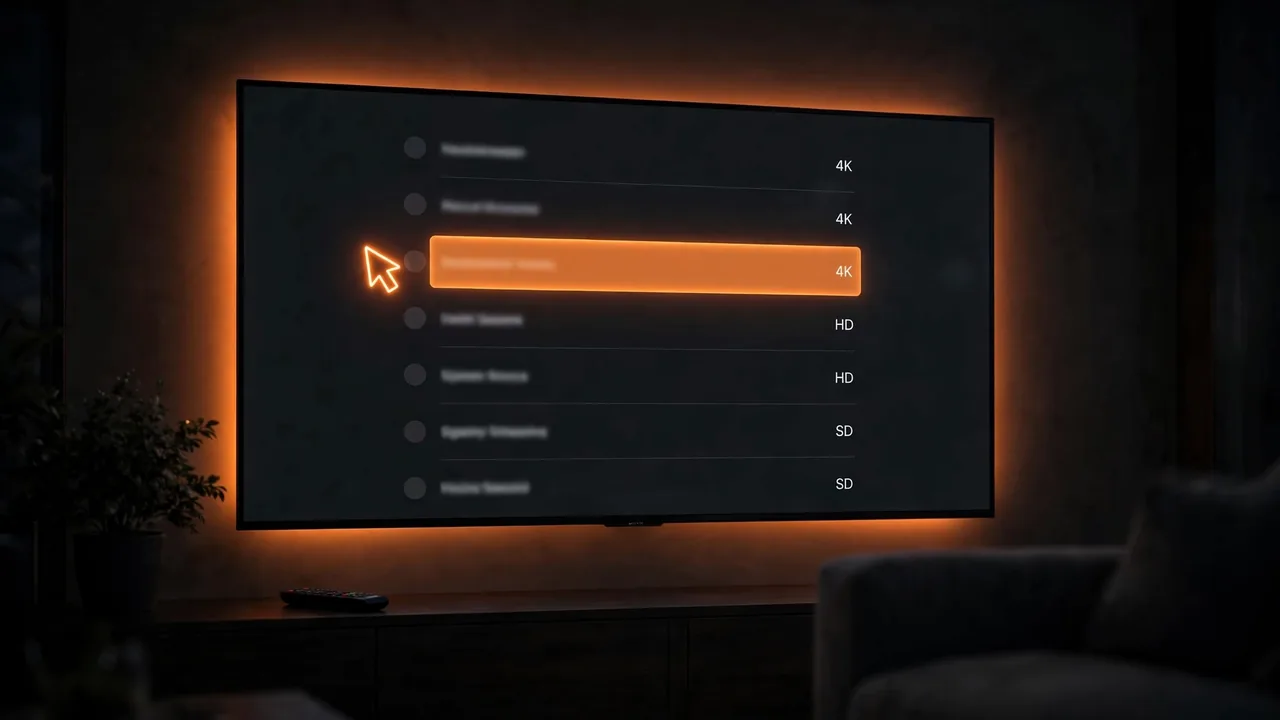
When TeaTV finds links, it shows them as a list — usually labeled by quality (HD, 4K) and sometimes by host. Most users tap the first link and, when it fails or shows nothing, assume the whole app is broken. Don’t. Individual sources die constantly; the list exists precisely so you can skip the dead ones.
- Tap a different link in the list — try two or three before concluding anything.
- If the list has quality labels, try an SD or 720p link: HD/4K hosts go down more often and are the first to get overloaded.
- If one episode fails, try the next episode — source availability varies episode to episode.
This single fix resolves a large share of “no streams” complaints on its own. If the list itself is empty for every title, move on.
Fix 2: Refresh the Source Lookup
Sometimes TeaTV’s source index is stale — the app is querying yesterday’s list of sites. Two quick ways to force a refresh:
- Back out and re-enter. Go back to the title page, wait a few seconds, and tap play again. This forces a fresh lookup.
- Restart the app. Force-stop it (Settings → Apps → TeaTV → Force Stop on Android/Firestick), reopen it, and try the same title. A fresh session often pulls an updated source list.
Fix 3: Clear TeaTV’s Cache (Not Your Data Yet)
A corrupted cache can break the scraping pipeline without touching anything else. Clear the cache first — it’s harmless and takes 30 seconds:
- Android / Firestick: Settings → Apps → TeaTV → Clear Cache.
- Then reopen TeaTV and retry.
Only use Clear Data if clearing the cache changed nothing — it wipes your favorites and settings, so it’s a bigger hammer. (Cache vs. data is also the fix we cover first in our general TeaTV not working fixes guide.)
Fix 4: Check Your Network — VPN, DNS, and ISP Blocks
Here’s the sneaky one: the app opens, your internet works for everything else, but every title shows no streams. That pattern points at your network interfering with TeaTV’s source sites.
- Turn off your VPN temporarily and retry. Some VPN server IPs are blocked by streaming hosts; others work fine. If streams appear with the VPN off, your VPN server — not the app — was the problem. Try a different server location before giving up on the VPN entirely.
- Switch off ad-blocking DNS or filters. Pi-hole, AdGuard DNS, and router-level ad blockers can silently block the domains TeaTV scrapes. Temporarily set your device to a standard DNS (like 8.8.8.8 or 1.1.1.1) and test.
- Try a different network. Mobile data vs. Wi-Fi, or a phone hotspot on your Firestick. If streams load on the other network, your ISP or home router is interfering — a DNS change or VPN often fixes it.
- Rule out raw speed problems only if pages also feel slow: a speed test and our TeaTV buffering fix guide cover the bandwidth side.
Fix 5: Update TeaTV
Scraping breaks when websites change their layout, and app updates are how TeaTV keeps its scrapers working. An old version of the app can slowly lose the ability to find streams — first a few titles, then everything.
- Check for an update inside the app’s settings if your build has an updater.
- Otherwise, reinstall from the same trusted source you originally used. Do not grab a “TeaTV update” from a random download button you found through a search ad — fake update pages are one of the most common malware vectors in this niche.
- Our TeaTV latest version guide explains how updates work and what to verify before installing.
Fix 6: Try Real-Debrid (Premium Links Bypass Dead Free Sources)
If free sources are consistently dry for the titles you want, Real-Debrid is the practical workaround many TeaTV users land on. It’s a paid premium-link service: instead of scraping public sources, it serves cached premium-quality links that are far more reliable and almost never show “no streams available.” It doesn’t fix a broken app — it replaces the fragile free-source layer with a sturdier one.
Fix 7: Wait and Retry (Sometimes the Right Fix Is Patience)
Scraper-based apps have dead periods. When multiple source sites go down at once — during takedown waves or maintenance — the correct move is to wait a few hours and try again, not to reinstall the app five times. If our isolation test showed that nothing plays but your network is fine and the app is updated, an outage is the most likely explanation. Check back later before taking the nuclear option.

Fix 8: Reinstall as a Last Resort
If every title fails on every network, the app is updated, cache is cleared, VPN/DNS aren’t the issue, and waiting didn’t help — the install itself may be corrupted:
- Uninstall TeaTV.
- Restart your device.
- Reinstall from the same trusted source you used originally.
- Open the app, pick a popular title, and test before changing any settings.
Reinstalling deletes your favorites and settings, which is why it’s last, not first.
How to Keep “No Streams Available” Rare
- Keep the app updated. Stale scrapers are the #1 preventable cause.
- Clear the cache monthly. Thirty seconds of maintenance prevents the silent corruption that breaks lookups.
- Pick popular titles when testing. If you’re troubleshooting, use a well-known movie — its source availability tells you whether the problem is the app or the title.
- Have a second link habit. Always try two or three source links before assuming anything is broken.
- Know when to stop. If a brand-new release has no streams, that’s normal for a scraper app — check back in a day or two rather than factory-resetting your device.
For more on how TeaTV works under the hood and whether it’s safe to rely on, our TeaTV safety review covers the risks of third-party streaming sources, and What Is TeaTV? explains the scraper model in plain language. And if the app has other problems beyond missing streams, the general TeaTV not working fixes guide is the hub for all of it — bookmark it.
Frequently Asked Questions (FAQs)
What does “No Streams Available” mean in TeaTV?
It means TeaTV’s scraper couldn’t find any playable streaming links for that title at that moment. The app searches third-party source sites each time you tap play; when none respond with a working link — because they’re down, blocked, or the title has few sources — you see this error.
Is “No Streams Available” my internet or the app?
Usually neither — most often it’s the source sites being down. Run the isolation test: if other titles play, it’s just that title’s sources. If nothing plays on Wi-Fi but mobile data works, it’s your network. If nothing plays anywhere, suspect an outage or a stale app version.
Why do some movies work and others show no streams?
Source availability varies by title. Popular movies have dozens of sources; brand-new releases and obscure titles can have zero. It’s not a bug — it’s how scraper apps work. Try another title, switch source links, or wait and retry.
Will a VPN fix “No Streams Available”?
Sometimes — if your ISP or region is blocking the source sites, a VPN can unblock them. But a VPN can also cause the error if its server IP is blocked by the streaming hosts. Test with the VPN off first; if streams appear, switch to a different VPN server instead of disabling it permanently.
Does Real-Debrid fix the no streams error?
Effectively, yes. Real-Debrid replaces TeaTV’s free public sources with cached premium links, which are far more reliable. It’s a paid service, but it’s the most consistent long-term fix if you keep hitting dead free sources.
TeaTV worked yesterday but shows no streams today — what happened?
Almost certainly a source-side outage or takedown wave. These happen regularly with scraper-based apps. Wait a few hours and try again before reinstalling or changing settings — reinstalling during an outage fixes nothing and loses your favorites.
By Priya Sharma, Senior Content Writer • Reviewed by David Chen, Technical Researcher
About the author: Priya Sharma is a Senior Content Writer at teatv-apk.net covering streaming apps, troubleshooting guides, and Firestick setup.
Reviewed by: David Chen, Technical Researcher, verified the troubleshooting steps, scraper-source behavior, and technical accuracy of this guide.
