
TeaTV Trakt Setup: Sync Watch History Across All Your Devices

If you watch TeaTV on more than one device, Trakt is the feature that stops you losing your place. Connect your free Trakt account to TeaTV once, and your watch history, watchlists and playback progress sync automatically across your phone, Firestick, Android TV and any other device running TeaTV. This guide walks you through the full TeaTV Trakt setup — creating an account, linking it with the activation code, and fixing the common sync problems.
Table of Contents
What Is Trakt and What Does It Sync With TeaTV?
Trakt (trakt.tv) is a free watch-tracking service used by many media apps. It keeps a cloud record of what you watch, so any app connected to the same Trakt account shows the same history and progress. For a broader overview, see what TeaTV is, and for the risk side, read our honest TeaTV safety review.
When you connect Trakt to TeaTV, this is what syncs:
- Watch history — every movie and episode you finish is marked as watched.
- Playback progress — pause a show on your phone and resume from the same point on your Firestick.
- Watchlists — titles you save on one device appear on all the others.
- Ratings and collections — rate a title once and the rating follows your account.
What Trakt does NOT sync: downloaded files for offline viewing, your local device settings, or live TV channels. Trakt tracks movies and TV episodes only.
Before You Start: What You Need
- The TeaTV app installed and updated to the latest version on your device. If you have not installed it yet, follow our TeaTV APK download guide.
- A free Trakt account. Create one at trakt.tv in any browser — it takes under a minute and needs only an email address and username.
- A second device (phone, tablet or computer) to open the activation page, since you cannot browse the web inside TeaTV itself.
How to Connect Trakt to TeaTV (Step-by-Step)
Step 1 — Open TeaTV Settings
Open TeaTV and go to the sidebar menu, then select Settings.
Step 2 — Select “Login to Trakt.tv”
In Settings, find the account section and select Login to Trakt.tv. TeaTV will show you an activation code on screen. Keep this screen open — the code expires after a few minutes.
Step 3 — Enter the Code at trakt.tv/activate
On your phone or computer, open a browser and go to trakt.tv/activate. Sign in to your Trakt account if asked, then type in the code exactly as shown on your TV or phone screen and confirm.
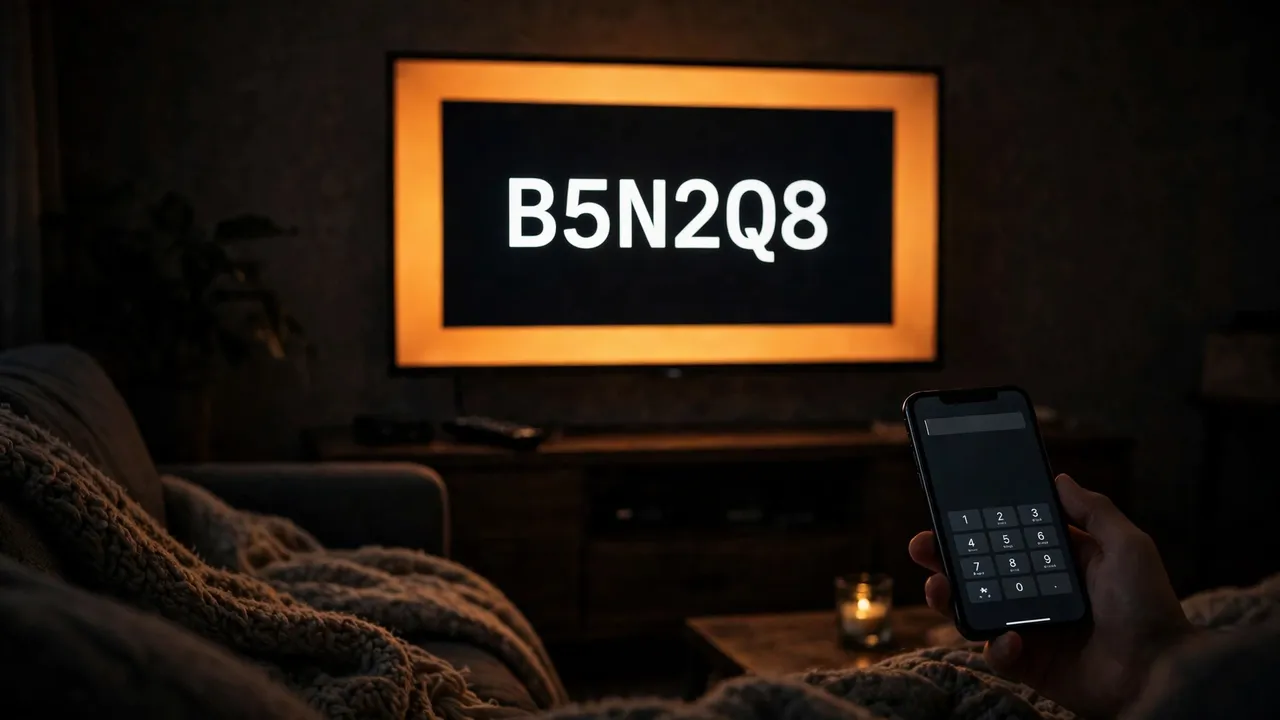
Step 4 — Authorize TeaTV
Trakt will ask whether you want to allow TeaTV to access your account. Click Yes (or Authorize). TeaTV needs this permission to record your watch history and read your watchlists.
Step 5 — Confirm the Connection
Return to TeaTV. Within a few seconds the login screen should close and your Trakt username should appear in Settings, confirming the link is live. Play any title for a minute, then check your Trakt profile in a browser — the activity should already be there.
Syncing TeaTV Across Devices: How It Works in Practice
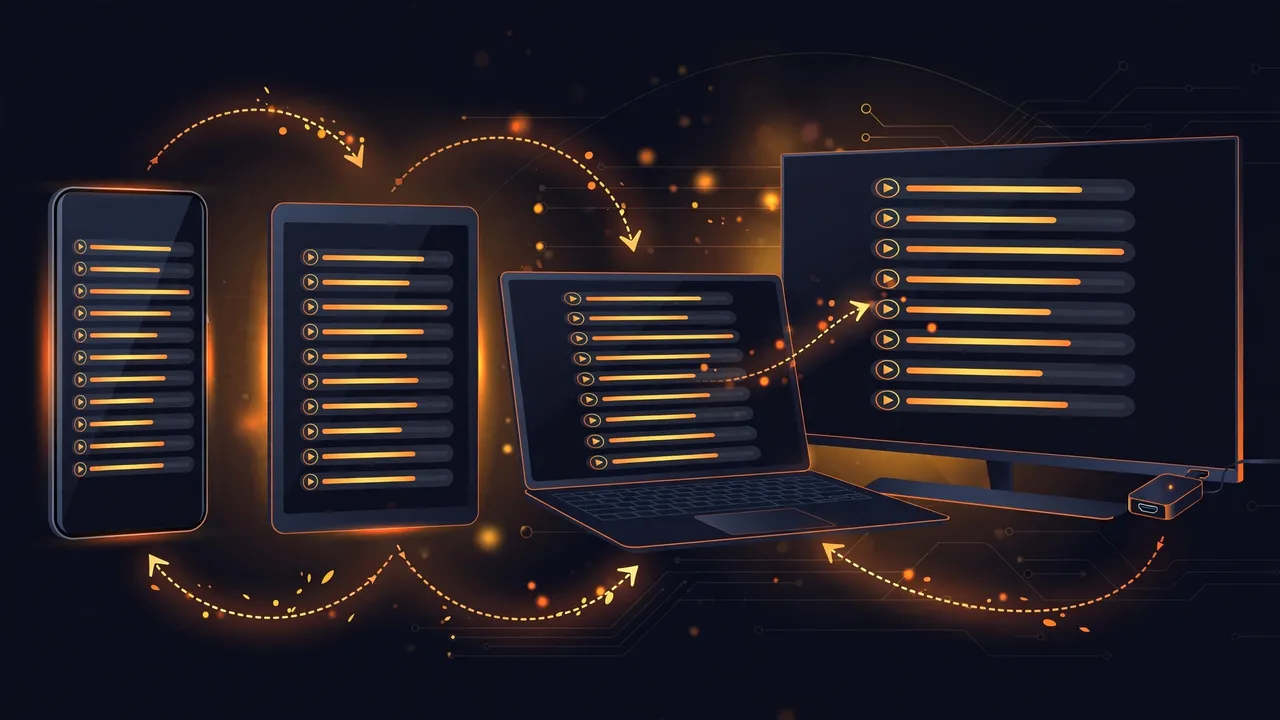
Once Trakt is linked on each device, the sync is automatic:
- Continue Watching follows you. Start a movie on your Android phone, pause halfway, and open TeaTV on your Firestick — the same title appears in Continue Watching at the same timestamp. Our TeaTV for Firestick guide covers getting the app on Fire TV devices, and our TeaTV for Smart TV guide covers big-screen setups.
- One watchlist everywhere. Save a show on your tablet and it is waiting on your Android TV that evening.
- No more “have I seen this?” Finished episodes are marked watched, so you never rewatch an episode by accident or lose track of a season.
To sync a new device, simply repeat the same steps: Settings → Login to Trakt.tv → enter the code at trakt.tv/activate, signed in to the same Trakt account.
Trakt + Real-Debrid: The Power Combo
Trakt and Real-Debrid solve two different problems and work well together. Trakt remembers what you watched; Real-Debrid gives you faster, higher-quality streaming links. If you use both, you get premium links and a synced watch history on every device. See our Real-Debrid with TeaTV setup guide for the full walkthrough.
TeaTV Trakt Not Working? 6 Fixes That Work
1. The activation code expired
Codes are short-lived. If Trakt rejects your code, go back to TeaTV Settings, select Login to Trakt.tv again for a fresh code, and enter it immediately.
2. You signed in to the wrong Trakt account
If history appears under a different username, you authorized the wrong account. Disconnect in TeaTV, sign out of Trakt in your browser, sign back in to the correct account, and link again.
3. New watches are not appearing in Trakt
Give it a minute — scrobbling happens as you watch, not instantly. If nothing appears after a full episode, disconnect and reconnect Trakt in TeaTV Settings, then play a title for a couple of minutes and recheck.
4. Progress syncs on one device but not another
Check that Trakt is linked on both devices under the same account. The device that is missing progress is usually the one that was never linked.
5. TeaTV shows an old or stuck login
Sign out inside TeaTV (Settings → Trakt → Disconnect or Log out), then link again with a fresh code. If it still fails, update TeaTV to the latest version first — older builds can have broken Trakt login.
6. Trakt itself is down
Rare, but it happens. Check trakt.tv in your browser. If the site will not load, wait and try again later; your local watch history is not lost, it just cannot sync until Trakt is back.
How to Disconnect Trakt From TeaTV
Change your mind or switching accounts? In TeaTV, go to Settings → Trakt and select Disconnect (or Log out). That stops future syncing. To fully revoke TeaTV’s access on Trakt’s side too, go to trakt.tv → Settings → Apps and remove TeaTV there.
Is Trakt Free?
Yes — Trakt’s free account covers everything TeaTV needs: watch history, progress sync, watchlists and ratings. Trakt also sells an optional VIP subscription with extras, but you do not need it to sync TeaTV. Never pay anyone for “TeaTV Trakt activation” — the official flow at trakt.tv/activate is free.
Frequently Asked Questions (FAQs)
Is Trakt free to use with TeaTV?
Yes. A free Trakt account is all you need for watch-history and progress sync. The optional VIP plan adds extras that TeaTV does not require.
Does Trakt work with TeaTV on Firestick?
Yes. The same Settings → Login to Trakt.tv flow works on Firestick, Fire TV, Android TV and Android phones. Link each device to the same Trakt account.
Why is my TeaTV watch history not syncing to Trakt?
The most common causes are an expired activation code, a wrong Trakt account, or Trakt not being linked on that particular device. Work through the fixes above — re-linking with a fresh code solves most cases.
Does Trakt sync my TeaTV downloads for offline viewing?
No. Trakt syncs watch history, progress, watchlists and ratings for streamed movies and episodes. Downloaded files stay local to the device they were saved on.
Can I use one Trakt account on multiple devices?
Yes — that is the whole point. Link the same Trakt account on your phone, Firestick, Android TV and tablet, and your history and progress stay in sync across all of them.
Is connecting Trakt to TeaTV safe?
Trakt only receives your watch activity (titles, progress, ratings). It does not get your device files or passwords. You can revoke access at any time from trakt.tv → Settings → Apps.
By Priya Sharma, Senior Content Writer • Reviewed by David Chen, Technical Researcher
About the author: Priya Sharma is a Senior Content Writer covering streaming apps and Android TV guides.
Reviewed by: David Chen, Technical Researcher, verified the setup steps and troubleshooting guidance in this article.
