
TeaTV on Roku: The Honest Guide (No Install, Mirroring Only)

No, you cannot install TeaTV on Roku — and any guide telling you otherwise is misleading you. Roku’s operating system cannot run Android APK files, and there is no official TeaTV channel in the Roku Channel Store. What you can do is watch TeaTV on your Roku-connected TV by mirroring your phone or computer screen to the Roku: screen mirroring from an Android phone, AirPlay from an iPhone or iPad, or wireless display from a Windows PC. This guide shows all three methods step by step, explains why the ‘install TeaTV on Roku’ guides are wrong, and fixes the mirroring problems most people actually hit.
Table of Contents
Why You Cannot Install TeaTV on Roku
Roku devices run Roku OS, a closed system built around Roku channels — not Android. TeaTV is an Android app distributed as an APK file, and APK files only run on Android (or Android-based systems like Fire TV and Android TV). Roku OS has no APK installer, no Android runtime, and no side door for Android apps.
Two facts settle it:
- The Roku Channel Store has no TeaTV channel. If you search the Channel Store for TeaTV, you will not find it — because Roku has never listed it.
- Roku’s Developer Mode does not install APKs. Developer Mode exists so developers can test Roku channels (written in Roku’s own BrightScript language). Its installer accepts Roku channel packages only. Feeding it an Android APK does nothing — there is no Android layer on the device to run it.
So if a guide promises a TeaTV icon on your Roku home screen, it is describing something Roku hardware cannot do.
The Bogus “Install TeaTV on Roku” Guides — Debunked
Search “TeaTV on Roku” and you will find guides claiming you can sideload TeaTV by enabling Developer Mode, grabbing a developer code, and uploading the APK through your Roku’s developer web page. Others claim you can simply find TeaTV in the Channel Store and press Install. Both claims are false:
- Developer-mode “sideloading” uploads Roku channel packages, not Android APKs. The steps look technical and convincing, but the APK will never run — and following them wastes your evening, not your Roku.
- “Find it in the Channel Store” is simply untrue. No TeaTV channel exists there, official or otherwise.
- “Works on Roku 1, 2, 3, 4, Express, Premiere, Ultra” lists are copy-paste filler. The limitation is the operating system, not the model — no Roku model runs Android apps.
Do not download any “TeaTV for Roku” file or channel code from these guides. At best it does nothing; at worst it is a malware trap dressed up as an installer. Our Is TeaTV safe guide explains how to spot fake TeaTV downloads.
The 3 Real Ways to Watch TeaTV on Roku — Compared
| Android screen mirroring | iPhone/iPad AirPlay | Windows PC mirroring | |
|---|---|---|---|
| What it sends | Your whole phone screen | Your whole Apple device screen | Your whole PC screen |
| Needs | Android phone + TeaTV installed | iPhone/iPad + AirPlay-capable Roku (Roku OS 9.4+) | Windows 10/11 PC + TeaTV (or emulator) |
| Phone/PC while watching | Must stay on, unlocked, nearby | Must stay on and nearby | Must stay on |
| Quality | Good on 5 GHz Wi-Fi | Usually smooth and stable | Good on strong Wi-Fi |
| Best for | Most Android users | iPhone/iPad owners | People who already run TeaTV on PC |
None of these installs anything on the Roku itself — the TeaTV app runs on your phone or PC, and the Roku just displays it. That is the honest trade-off, and it works well once set up.
Before You Start: The 2-Minute Checklist
- Your phone or PC and your Roku are on the same Wi-Fi network — same network name, not a guest network, and not one device on mobile data.
- Your Roku is powered on and showing its home screen.
- TeaTV is installed and updated on your Android phone (or on your PC). If you have not installed it yet, follow our TeaTV APK download guide.
- Your Roku software is up to date: Settings → System → Software update → Check now. Old builds break mirroring.
- Turn off your VPN for the first connection — a VPN can hide your phone from the Roku on your local network.
Method 1 — Mirror From an Android Phone (Screen Mirroring)
This works on the widest range of Roku models and is the method most Android users should start with.
Step 1 — Allow screen mirroring on your Roku
On your Roku remote, press Home, then go to Settings → System → Screen mirroring and set it to Prompt (or Always allow if you prefer no prompt each time).
Step 2 — Start casting from your Android phone
Swipe down to open Quick Settings and tap Cast, Screen Cast, or Smart View — the name varies by phone brand (Samsung phones use Smart View). Pick your Roku device from the list.
Step 3 — Accept the prompt on your TV
If your Roku is set to Prompt, accept the connection on the TV. Your phone screen should now appear on the TV.
Step 4 — Open TeaTV and play
Open TeaTV on your phone and start your movie or episode. Keep the phone awake, unlocked, and nearby — locking the screen or leaving Wi-Fi range ends the mirror.
Step 5 — Stop mirroring
Reopen the Cast/Smart View control on your phone and tap Disconnect, or press Home on the Roku remote.
One honest caveat: some Android phones (notably Google Pixel phones on newer Android versions) do not support Roku’s native mirroring path. If your Roku never appears in the Cast list on such a phone, try a different Android device or the Windows method below.
Method 2 — Mirror From an iPhone or iPad (AirPlay)
iPhones cannot use Android-style screen mirroring, but AirPlay-capable Roku models support Apple’s AirPlay — and it tends to feel smoother than standard mirroring.
Step 1 — Check your Roku supports AirPlay
On your Roku, go to Settings → Apple AirPlay and HomeKit. If that menu does not exist, your model or software version does not support AirPlay — use Method 1 from an Android device instead. As a rule of thumb, AirPlay needs Roku OS 9.4 or later on a compatible model.
Step 2 — Turn AirPlay on
In Settings → Apple AirPlay and HomeKit, set AirPlay to On.
Step 3 — Mirror from your iPhone or iPad
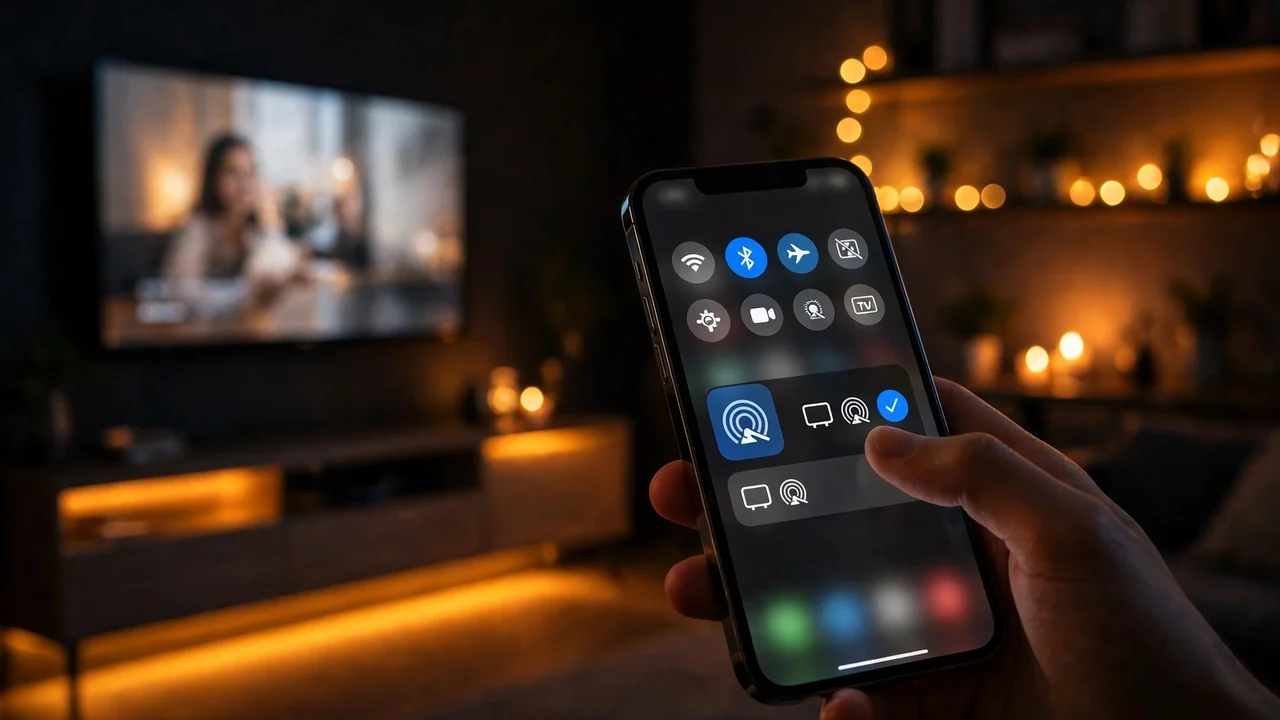
Make sure your iPhone/iPad and Roku are on the same Wi-Fi network. Open Control Center (swipe down from the top-right corner on newer iPhones), tap Screen Mirroring, and select your Roku device. Enter the code on your TV if one appears.
Step 4 — Open TeaTV — wait, there is a catch
Here is the part most guides skip: TeaTV is an Android-only app, so there is no TeaTV app on your iPhone to mirror from. AirPlay mirroring from an iPhone only helps if you are mirroring another app or content that exists on the iPhone. To watch TeaTV itself on the big screen, you need an Android phone for Method 1, a Windows PC for Method 3, or a direct TV install (see “Want a Native App Instead?” below). For the full iPhone picture, read our TeaTV for iOS workarounds guide.
Method 3 — Mirror From a Windows PC
If you already run TeaTV on your PC, you can push the whole PC screen to the Roku.
Step 1 — Start TeaTV on your PC
Open TeaTV on your Windows PC (directly, or inside an emulator — our TeaTV for PC guide covers the emulator route).
Step 2 — Connect to a wireless display
On Windows 11, press Win + K to open Quick Settings, click Connect to a wireless display, and select your Roku device. On Windows 10, open the Action Center, click Connect, and select your Roku.
Step 3 — Accept on the TV and play
Accept the prompt on your Roku if one appears, then start playback in TeaTV on your PC. Keep the PC awake and on the same Wi-Fi network.
Roku TV vs Roku Player vs Roku Streaming Stick — Any Difference?
No, for TeaTV purposes. Roku TVs, Roku players (Express, Premiere, Ultra), and Roku Streaming Sticks all run the same Roku OS, so the same limitation applies to all of them: no APK installs, no TeaTV channel — mirroring or AirPlay only. The steps above work the same way whether the Roku is built into your TV or plugged into its HDMI port. If a guide claims a specific Roku model “supports TeaTV installation,” it is recycling the same myth with a model name attached.
Want a Native App Instead? Get a Device That Actually Runs TeaTV
Mirroring works, but it ties up your phone and can stutter on weak Wi-Fi. If you watch on the TV every night, a cheap device that runs TeaTV natively is the better long-term setup:
- Amazon Fire TV Stick — TeaTV installs directly on it. See our TeaTV for Firestick guide.
- Android TV / Google TV device or TV — TeaTV installs directly on Android TV. See our TeaTV for Smart TV guide.
- Chromecast — another cast-from-phone option, covered in our TeaTV Chromecast guide.
A Fire TV Stick typically costs less than a night out and removes the phone from the equation entirely.
TeaTV on Roku Not Working? Fixes for the Real Problems
1. Your Roku does not appear in the device list
Both devices must be on the same Wi-Fi network name — check for a guest network, a second band (2.4 GHz vs 5 GHz) split, or AP isolation on your router blocking devices from seeing each other. Restart your phone’s Wi-Fi, then restart the Roku.
2. Mirroring connects, then drops or stutters
Weak Wi-Fi is the usual cause. Move closer to the router, switch both devices to the 5 GHz band if available, and close bandwidth-hungry apps on the phone. Our TeaTV buffering fix guide covers the same network fixes in depth.
3. Black screen on the TV while the phone plays fine
Stop the mirror, force-close TeaTV, reopen it, and mirror again. If only one title shows black, switch source links — some links do not mirror cleanly. The general fixes in our TeaTV not working fixes guide apply here too.
4. No sound, or sound comes from the phone
In mirroring mode, audio follows the screen — if sound still comes from the phone, disconnect and reconnect the mirror, and check the TV is not muted and is set to the right input. If the TV is silent in every app, the issue is the TV, not TeaTV.
5. AirPlay option missing on your Roku
Your model or software version does not support AirPlay. Update via Settings → System → Software update → Check now; if the menu still does not appear, your Roku is not AirPlay-capable — use Android or Windows mirroring instead.
6. VPN is on
A VPN routes your phone’s traffic away from your local network, so the Roku becomes invisible. Turn the VPN off while mirroring.
Tips for the Best Mirrored Quality
- Use the 5 GHz Wi-Fi band when both devices support it; it handles video far better than crowded 2.4 GHz.
- Pick the highest-quality source link TeaTV offers — a low-resolution source looks worse on a big TV no matter how good the mirror is.
- Keep your phone charged or plugged in while mirroring — mirroring drains the battery fast.
- Close other streaming or download apps on the phone before mirroring so TeaTV gets full bandwidth.
Frequently Asked Questions (FAQs)
Can I install TeaTV on Roku?
No. Roku OS cannot run Android APK files, and there is no TeaTV channel in the Roku Channel Store. You can only watch TeaTV on a Roku TV by mirroring your phone or PC screen to the Roku.
Is there a TeaTV channel for Roku?
No. No official or unofficial TeaTV channel exists in the Roku Channel Store. Any site offering a “TeaTV Roku channel” download or code is not offering a real Roku channel.
Can I sideload TeaTV on Roku with Developer Mode?
No. Roku’s Developer Mode installs Roku channels written in Roku’s own language — it cannot install or run Android APKs. Guides claiming otherwise are wrong, however technical their steps look.
Does my Roku support AirPlay?
Many modern Roku players and Roku TVs do, if they run Roku OS 9.4 or later. Check Settings → Apple AirPlay and HomeKit on your Roku — if that menu exists, AirPlay is available; if not, your model does not support it.
Why is my Roku not showing up when I try to mirror?
Usually the devices are on different Wi-Fi networks (or a guest network), mirroring is disabled on the Roku, or router AP isolation is blocking discovery. Put both on the same network, set Settings → System → Screen mirroring to Prompt or Always allow, and restart both devices.
Is watching TeaTV on Roku via mirroring safe?
Mirroring itself is just displaying your own phone screen on your own TV — nothing extra is installed on the Roku. The safety questions are about TeaTV itself and where you got it; see our Is TeaTV safe guide and stick to the install route in our TeaTV APK download guide.
By Priya Sharma, Senior Content Writer • Reviewed by David Chen, Technical Researcher
About the author: Priya Sharma is a Senior Content Writer covering streaming apps and Android TV guides.
Reviewed by: David Chen, Technical Researcher, verified the Roku mirroring and AirPlay steps and the debunk of sideloading claims in this article.
