
TeaTV No Sound? Fix Audio Problems in Minutes

If TeaTV has no sound, do not start by reinstalling the app — start by working out which audio problem you have, because each one has a different fix. If no title has sound, your device volume, mute setting, or audio output is the most likely cause. If some titles play with sound and others do not, the streaming link is the problem, not your device. If the sound is there but does not match the actors’ lips, that is a sync problem, not a missing-audio problem. And if your phone plays sound but your TV stays silent while casting, the audio is being routed to the wrong speaker. This guide walks you through a 60-second test that tells these apart, then gives you the fixes in order — quickest first, Firestick steps included, reinstall last. If TeaTV has a different problem, our TeaTV not working fixes guide covers the full range of errors.
The 60-Second Test: Which Audio Problem Do You Have?
Answer three questions before touching any setting. 1. Does any other app have sound? Open YouTube or your device’s own media player and play something. If that app is silent too, the problem is your device or TV — skip straight to the volume and output checks below. If other apps have sound, the problem is inside TeaTV or its streaming links. 2. Is it every TeaTV title, or just one? Play a second, unrelated title. If every title is silent, keep working through this guide in order. If only one title is silent, jump to the source-link fix. 3. Is the picture playing normally? If the video plays but there is no sound at all, you have a missing-audio problem. If the sound plays but lags behind or runs ahead of the picture, you have a sync problem — jump to the sync fix. If the picture is black as well as silent, that is a different fault: see our TeaTV black screen fix instead.
| What you hear | Problem | Most likely cause | Jump to |
|---|---|---|---|
| Nothing, on every title, in every app | Device-wide silence | Muted volume, wrong output, Bluetooth routing | Volume and output checks |
| Nothing, in TeaTV only, on every title | TeaTV-wide silence | App audio blocked, corrupt cache, device audio setting | Volume checks, then cache fix |
| Nothing, on one title only, other titles fine | Source problem | That title’s links have no usable audio track | Different source link |
| Sound, but it does not match the lips | Audio sync problem | Player or source timing drift | Sync fix |
| Sound on the phone, silence on the TV while casting | Routing problem | Audio sent to phone speaker, not the TV | Casting audio fix |
Fix 1: Check Volume, Mute, and Do Not Disturb
This sounds obvious, and that is exactly why it is first. Turn the volume up using both your device remote and the on-screen volume control, and check for a mute icon on the TV or in the player. On a phone, check the physical silent switch or Do Not Disturb mode: some phones silence media audio when Do Not Disturb is on. On a Firestick, press the volume and mute buttons on the remote and confirm the on-screen volume indicator actually moves. Also check the volume inside TeaTV’s player itself, if your version shows a player volume slider, since player volume and device volume are separate controls. If sound returns here, you are done.
Fix 2: Try a Different Source Link for the Same Title
When one title is silent but others play with sound, the streaming link is almost always the cause. TeaTV lists several source links for most titles, and they are not equal: a link can carry a video stream whose audio track is missing, damaged, or in a format your player cannot decode, while the next link for the very same title plays perfectly. Go back to the title, open its source list, and try a different link — preferably one from a different host or with a different quality label. If the second link has sound, the first link was the problem. If every link for one title is silent but other titles play fine, the problem is that title’s sources: wait a few hours for fresh links, or pick another title. Do not reinstall the app for a one-title problem.
Fix 3: Check the Audio Track and Language Selection
Some TeaTV titles offer more than one audio track — a different language, a commentary track, or a track that is simply empty for that source. If the wrong track is selected, you can get perfect video with no usable sound. While a title is playing, open the player controls and look for the audio or language option (speaker icon, audio-track icon, or language label). If more than one track is listed, try each one in turn. If only one track is listed and it is silent, go back to the source-link fix. This also matters where subtitles and audio disagree: our TeaTV subtitles fix covers subtitle timing and selection in detail.
Fix 4: Switch to an External Player (MX Player or VLC)
A silent video with a perfect picture is the classic sign of a codec gap: the stream’s audio uses a format TeaTV’s built-in player cannot decode. In TeaTV’s playback settings, or from the player screen if your version offers it, set the default player to an external player, and install MX Player or VLC from a trusted source if you do not already have one. VLC handles an unusually wide range of audio formats, and its official site is videolan.org. Replay the same title through the external player: if the sound appears, the built-in player was the bottleneck. Keep the external player updated. If the external player is silent too, the link itself is the problem, so return to the source-link fix.
Fix 5: Fix Audio That Is Out of Sync
Out-of-sync audio is a different problem from missing audio. First, check whether the sync problem follows the title or the device: play a second title. If only one title is out of sync, switch to a different source link for that title. If every title is out of sync by roughly the same amount, switch to an external player, which usually offers its own audio-delay adjustment, and nudge the delay until lips and sound line up. If the sync problem appears only on one device (for example, only on a Bluetooth speaker), the wireless connection is adding the delay: see the Bluetooth fix below. A small, consistent delay on a TV is sometimes a TV audio-processing setting — try your TV’s audio-delay or lip-sync setting, and turn off heavy sound processing modes while testing.
Fix 6: Check Bluetooth, Soundbars, and HDMI Audio Routing
When sound plays on one speaker but not another, the audio is being sent somewhere you are not listening. First, disconnect Bluetooth completely: turn Bluetooth off on your phone or TV stick, then replay the title. If sound returns through the TV speakers, a paired headphone, earbud case, or speaker was silently capturing the audio. Second, if you use a soundbar or AV receiver, test with the TV’s own speakers: unplug the soundbar or switch the TV audio output back to TV speakers. If sound returns, the soundbar, its cable, or its input selection was the problem. Third, on a wired setup, reseat the HDMI cable at both ends and try a different HDMI port: a loose HDMI connection can carry video while dropping audio.
Fix 7: TeaTV No Sound on Firestick: Audio Settings That Matter
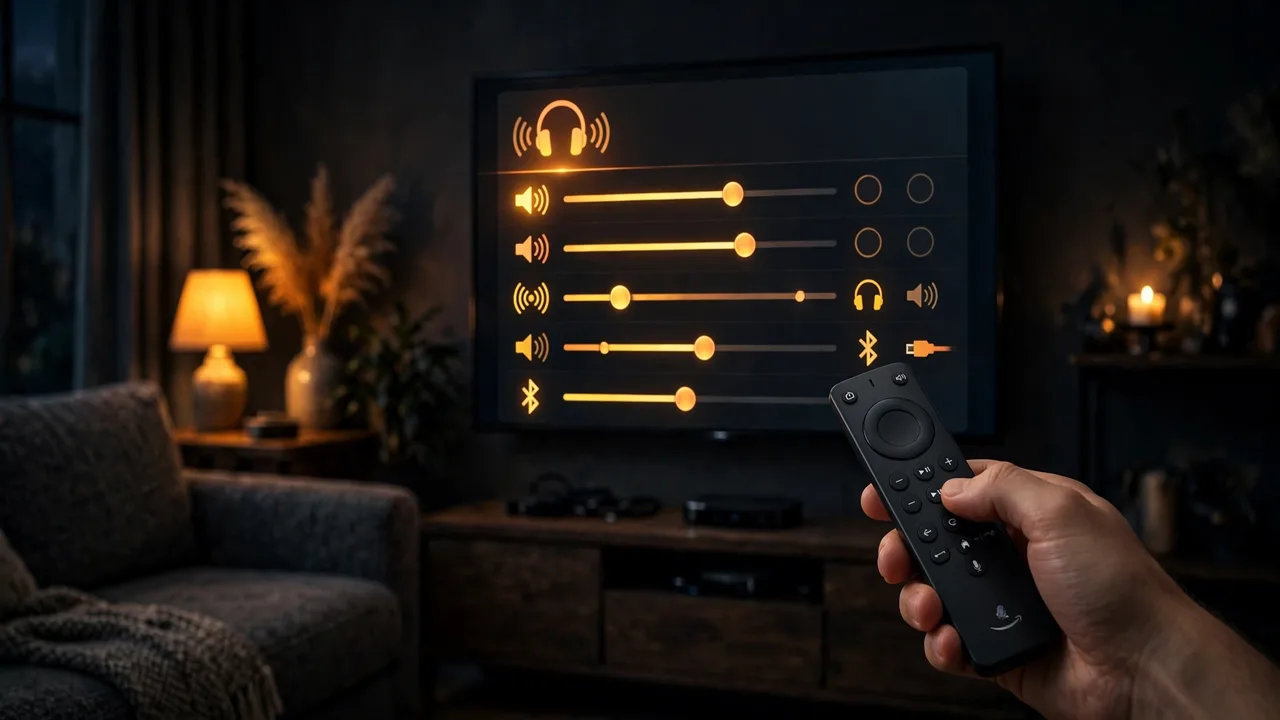
- Set audio to Stereo as a test. Go to Settings, then Display & Sounds, then Audio, and set the surround sound option to Stereo (sometimes shown as PCM or Stereo rather than Best Available or Dolby Digital). Surround formats that your TV or soundbar cannot decode can play as silence, while stereo plays on everything.
- Check Dolby Digital settings. In the same Audio menu, if Dolby Digital Plus is on and your setup does not support it, turn it off and test again.
- Confirm the HDMI port and input. Make sure the Firestick is in the HDMI port the TV is actually showing, and try a different port.
- Restart the Firestick properly. Hold Select and Play together for about ten seconds to restart, or unplug the stick for 30 seconds and plug it back in.
Our TeaTV for Firestick guide covers the full install and settings path for Fire TV devices.
Fix 8: Fix Sound Missing Only When Casting or Mirroring
When TeaTV plays with sound on your phone but the TV stays silent, the app is fine — the cast or mirror session routed the audio to the wrong place. On Android, open the casting controls while casting and confirm the media-audio option is selected for the TV, not for the phone speaker. On iPhone, open Control Center, check the AirPlay target is still the TV, and confirm the volume slider shows the TV as the output. Restart the cast session if the target looks right but the TV is still silent: stop casting, force stop TeaTV, reopen it, and cast again. Also keep your phone awake during casting. Our Chromecast casting guide walks through both casting and mirroring step by step, and our TeaTV on Roku guide covers the same routing checks for Roku mirroring.
Fix 9: Clear TeaTV’s Cache, Then Reinstall Only as a Last Resort
If every fix above has failed and TeaTV is silent on every title while other apps have sound, corrupt app data is the remaining suspect. Clear the cache first: on Android, go to Settings, then Apps, then TeaTV, then Storage, and tap Clear Cache. On a Firestick, the path is Settings, then Applications, then Manage Installed Applications, then TeaTV, then Clear Cache. Relaunch TeaTV and test a title you know has sound on other devices. Only if the cache clear fails should you clear data or reinstall — clearing data or reinstalling wipes your watchlist, favorites, and settings. It also cannot fix a dead source link, a device-wide mute, or a soundbar on the wrong input, which is why it sits last. If a fresh install is still silent on every title while other apps play sound, update TeaTV to the latest version (our latest version guide) and test again. If TeaTV also stutters or lags once sound returns, our TeaTV buffering fix covers connection-side tuning.
Prevention: Keep TeaTV Sound Working
- Keep TeaTV and your external player updated.
- Before a movie night, play 30 seconds of any title and confirm sound through the speakers you will actually use.
- Leave Bluetooth off unless you are actively using headphones or a speaker.
- Do not run surround sound on equipment that does not support it — stereo is the safe default.
- Clear TeaTV’s cache once every few weeks.
- If one title is silent, switch links first — it is almost always the link, not your setup.
Frequently Asked Questions (FAQs)
Why does TeaTV have no sound at all?
The most common causes are a muted or low device volume, audio routed to a Bluetooth device you are not listening to, a surround-sound format your TV cannot decode, or a source link with no usable audio track. Work through the 60-second test first: if other apps are silent too, it is your device; if only one TeaTV title is silent, it is that title’s links.
Why does TeaTV have no sound on Firestick but sound on my phone?
Firestick audio goes through Fire OS audio settings that phones do not have. Set Display & Sounds, then Audio, to Stereo as a test, turn off Dolby Digital Plus if your setup does not support it, and check the HDMI port and soundbar input.
TeaTV video plays but there is no sound — what is wrong?
That is usually a codec gap in the built-in player or a source link with a missing audio track. Try a different source link first; if every link for that title is silent, switch to an external player such as MX Player or VLC.
Why is TeaTV sound out of sync with the video?
Sync drift usually comes from the source link’s file or from the player. Switch source links for a one-title problem; for an every-title problem, switch to an external player and use its audio-delay adjustment. Bluetooth speakers can also add delay — test with the TV speakers to isolate it.
Why is there no sound on my TV when I cast TeaTV from my phone?
Casting routes audio separately from video, and it often defaults back to the phone speaker. On Android, check the casting controls for the media-audio option; on iPhone, confirm the AirPlay target is still the TV. Restarting the cast session fixes a stale session.
Should I reinstall TeaTV to fix no sound?
Only as a last resort, after the volume, source-link, audio-track, external-player, routing, and Firestick checks. A reinstall wipes your watchlist and settings, and it cannot fix a dead source link, a muted TV, or a soundbar on the wrong input.
By Priya Sharma, Senior Content Writer • Reviewed by David Chen, Technical Researcher
About the author: Priya Sharma is a Senior Content Writer covering streaming apps and Android guides.
Reviewed by: David Chen, Technical Researcher, verified the device steps and player recommendations against current Android, Fire OS, and Chromecast behavior.
