
TeaTV Movies: How to Find, Watch & Download Movies on TeaTV

Yes, you can watch teatv movies for free — TeaTV has a dedicated Movies section where you can search for a film by title, actor, or director, filter by genre, year, or rating, and stream it in quality up to 4K. Pick a title, choose one of the several stream links TeaTV finds for it, and press play — no account, no subscription, and no payment screen. This guide shows you how to find movies on TeaTV, pick the best link and quality, turn on subtitles, save films to your watchlist, and download movies for offline viewing. New to the app? Start with what TeaTV is and our TeaTV APK download guide first.
Table of Contents
What Are TeaTV Movies?
The Movies tab is the heart of the TeaTV app. Open TeaTV and the home screen shows you trending titles; tap Movies in the side menu and you get the full film catalogue, separated from TV shows, HD Releases, and Live TV. Every movie has its own details page with a poster, synopsis, release year, rating, cast list, and trailer — the information comes from movie databases, so you can check what a film is about before you spend data streaming it.
Two things about how teatv movies work are worth understanding before you press play. First, TeaTV does not host the movies itself: it finds streaming links for each title from sources across the internet and lists them for you. That is why one movie can have several links at different qualities, and why a film that plays fine today might have no working link tomorrow — the links change as sources change. Second, there is no account and no subscription. You open the app, pick a movie, and watch. There is no “premium” tier hiding films behind a paywall, and no watch history is synced anywhere unless you connect a Trakt account yourself.
How to Find Movies on TeaTV
Finding a film is fast once you know the three ways TeaTV lets you search and browse.
1. Search by title, actor, or director
Tap the search icon at the top of the screen and type what you are looking for. The search accepts movie titles, but it also accepts actor names and director names, so “movies with that actor from the trailer you saw” is a real search, not a guess. Type at least a few letters — results appear as you type — then tap the right poster.
2. Browse the Movies tab by genre
If you do not have a specific film in mind, open the Movies section and scroll. Movies are grouped by genre — action, comedy, drama, horror, romance, sci-fi, animation, thriller, documentary, and more — so you can browse one genre at a time instead of scrolling one endless list. The home screen also shows trending movies and new releases, which is the fastest way to see what other people are watching right now.
3. Filter by year, country, rating, and language
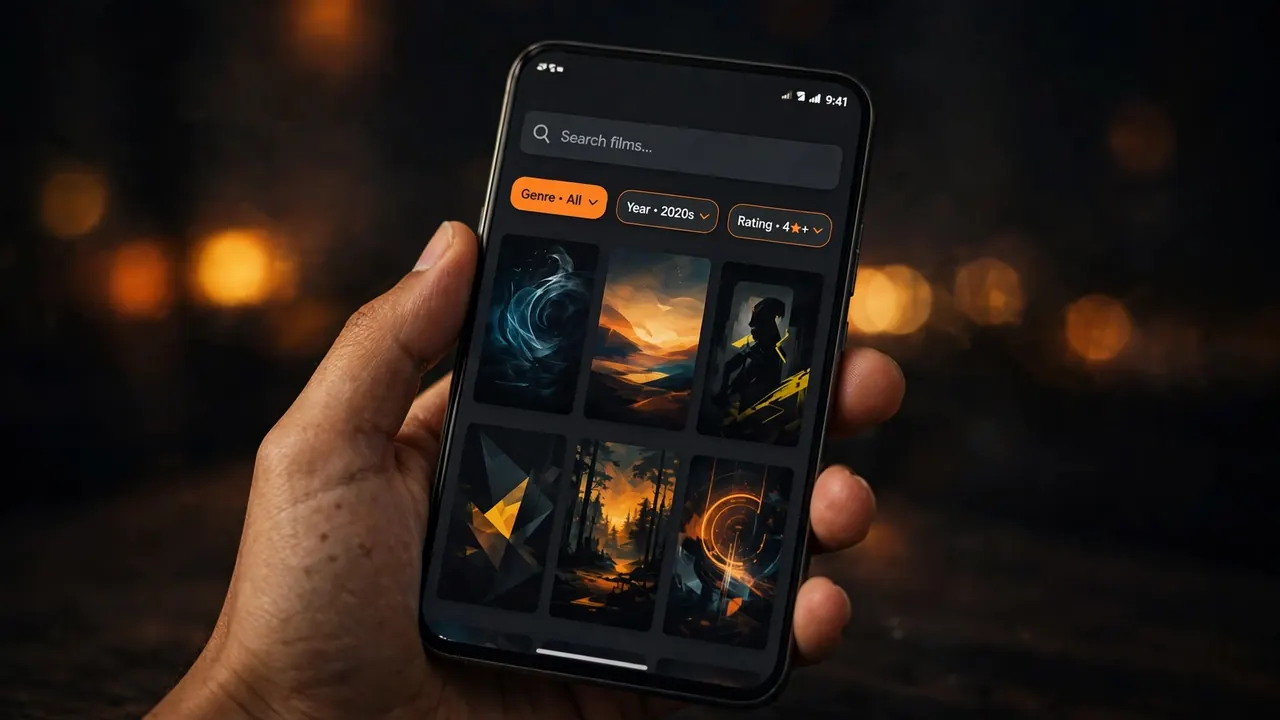
Tap the filter icon at the top of the Movies section to narrow the list. You can filter by genre, release year, country, IMDb rating, popularity, and language — useful when you want, say, a highly rated horror film from the last five years, or a film in a specific language. Filters are the difference between browsing a catalogue and actually finding something worth watching, and most people never touch them.
Tip: the HD Releases section is worth checking separately. It lists recently released films that already have high-definition links, so if picture quality matters to you, start there instead of the main Movies tab.
How to Watch a Movie on TeaTV
Once you have found a film, watching it takes four steps.
- Tap the movie to open its details page. Read the synopsis, check the rating and cast, and watch the trailer if there is one — it confirms you have the right film before you stream anything.
- Tap Play (or pick a stream link). TeaTV shows you the links it found for that movie, usually several, each labelled with its quality and source. Start with the first 720p or 1080p link — it loads fastest and tells you within seconds whether the link works.
- Choose your player. TeaTV plays the link in its default player, or asks which player to use. If you want better subtitle controls or fewer playback problems, switch to an external player — our TeaTV external player guide compares MX Player, VLC, and TPlayer and shows how to set one as default.
- If a link buffers forever or fails to load, go back and try the next link for the same movie. A dead link is normal on TeaTV — it means that source is down, not that the movie is unavailable. The full troubleshooting ladder is in the fixes section below.
While a movie plays, tap the screen once to bring up the player controls: pause, seek, volume, playback speed, audio-track switching, and subtitles. The controls are the same on Android phones, Android TV, and Firestick — only the way you reach them changes (touch on a phone, remote buttons on a TV).
Best Quality for TeaTV Movies: 360p, 720p, 1080p, or 4K?
Every movie on TeaTV lists its links by quality, and picking the right one saves you buffering and mobile data.
| Quality | Best for | Needs roughly |
|---|---|---|
| 360p / 480p (SD) | Small phone screen, slow or capped data | 1–3 Mbps |
| 720p (HD) | Phones and small tablets, the safe default | 3–5 Mbps |
| 1080p (Full HD) | TVs, laptops, and big tablets | 5–10 Mbps |
| 4K (Ultra HD) | Big TVs only, and only on fast Wi-Fi | 25 Mbps or more |
Our recommendation: start with 720p for a first watch of any film. If it plays smoothly for a minute, switch to 1080p for the rest. Jumping straight to 4K on a phone screen wastes data — you cannot see the difference on a 6-inch display — and 4K links are the most likely to buffer because fewer sources host them. If a movie only has low-quality links, that usually means it is a new release whose high-quality sources have not appeared yet; check again in a few days, or try the HD Releases section.
If you use Real-Debrid, you will see more high-quality links for the same movie, because premium links are faster and more stable. Our Real-Debrid with TeaTV guide explains the setup and whether it is worth it for you — it is optional, not required, and movies play fine without it.
How to Download Movies on TeaTV (Offline Viewing)
TeaTV can save a movie to your device so you can watch it later without Wi-Fi — handy for flights, commutes, or capped data. The short version:
- Open the movie’s details page and tap the Download icon (below the player, next to Play).
- Pick a quality — 720p is the best balance of size and picture for a phone.
- The download appears in TeaTV’s Downloads section, where you can watch its progress.
- When it finishes, open Downloads inside TeaTV and press play — no internet needed.
That is the whole flow. The details that trip people up — where downloads are stored, what to do when a download gets stuck, how much space a 1080p film needs, and Firestick storage warnings — are covered in full in our dedicated guide to downloading movies on TeaTV for offline viewing. Read that before downloading a whole watchlist, and do not re-download a film you already have saved: check Downloads first.
Subtitles for TeaTV Movies
Most movies on TeaTV offer subtitles in many languages, and turning them on takes seconds.
- Start playing the movie.
- Tap the screen to show the player controls, then tap the subtitle (CC) icon.
- Pick your language from the list. If your language is missing for that link, try a different link for the same movie — subtitle availability varies by source.
- If the subtitles are out of sync with the dialogue, use the player’s subtitle delay control to shift them forward or back. In MX Player and VLC this is in the subtitle menu while playing; our external player guide shows exactly where.
If subtitles do not appear at all, or the subtitle button is missing, the link may not carry any — switch links first, then read our TeaTV subtitles fix guide for the full ladder, including external .srt files.
TeaTV Movies on Firestick
Watching movies on a Firestick is the same app with a remote instead of a touchscreen, and two things are different enough to mention.
- Navigation: use the Fire TV remote’s directional buttons to move through the Movies tab, and the Menu button (three lines) for extra options on a title, including the download option. Searching by voice works through the Fire TV search only if you open the app first and use its own search box — typing with the on-screen keyboard is slow, so a Bluetooth keyboard helps if you search a lot.
- Player choice matters more on a TV. The built-in player’s small buttons are awkward with a remote, and subtitle controls are harder to reach. Install MX Player from the Amazon Appstore and set it as the default — it is remote-friendly and handles subtitles better. The full Firestick setup, including sideloading VLC if you want it, is in our TeaTV for Firestick guide.
Picture quality on a TV is also where the quality table above matters most: on a 55-inch screen, the jump from 720p to 1080p is obvious, so pick 1080p links when your Wi-Fi can handle them, and keep 4K for films where a 4K link actually exists and loads.

Save Movies to Your Watchlist (Favourites & Trakt)
TeaTV has two ways to remember a film for later, and they solve different problems.
- Favourites (in-app): tap the heart or star icon on a movie’s details page and it lands in Favourites in the side menu. This is stored on your device only — if you reinstall TeaTV or switch phones, the list is gone.
- Trakt watchlist (synced): connect your free Trakt account in TeaTV’s settings and your watchlist and watch history sync across devices. Mark a movie as watched on your phone and it shows as watched on your Firestick. Our TeaTV Trakt setup guide walks through connecting the account and fixing the common “Trakt not working” errors.
Use Favourites for tonight’s shortlist and Trakt for the long-term list of films you actually want to get through. Both beat searching for the same title twice.
TeaTV Movies Not Working? 6 Fixes That Work
Work through these in order. Most movie problems are one of the first three.
- The movie has no links at all. No source currently hosts a working link for that film. Try again in a day or two, search for the same title again (links refresh), or check whether the film is listed under a slightly different title or year. If it never appears, the film may only be on fully legal services — see our best TeaTV alternatives for where else to look.
- Every link buffers or fails to load. The problem is usually your connection or the sources, not the movie. Switch to a 720p link, restart your Wi-Fi, and try again. The full ladder is in our TeaTV buffering fix guide.
- “No streams available” on a movie that worked yesterday. Links expire and sources go down. Try the other links for the same title first, then check whether TeaTV itself is down with our is TeaTV down check. The dedicated fix guide is fixing “No Streams Available” on TeaTV.
- Picture plays but the screen is black. Switch players — VLC handles the most codecs — or change the decoder in MX Player. Full steps: TeaTV black screen fix.
- Picture plays but there is no sound. Switch players first, then check the audio track in the player (some links carry the wrong language audio). Full steps: TeaTV no-sound fix.
- Subtitles are missing or out of sync. Switch to a different link for the same movie, then adjust the subtitle delay in your player. Full steps: TeaTV subtitles fix.
If nothing loads at all — no movies, no TV shows, no search results — the app itself is the problem, not the film. See our guide to fixing TeaTV when it is not working.
What You Can’t Do With TeaTV Movies (Honest Limits)
A movies guide that only lists features would be dishonest, so here are the limits.
- No guaranteed catalogue. Because TeaTV aggregates links from other sources, there is no fixed library. A film can be there today and gone tomorrow, and a brand-new release may only have low-quality links for the first days. That is the trade-off for a free app with no subscription.
- No originals or exclusives. TeaTV does not make films. Anything labelled as a TeaTV original or exclusive is a mislabel from a source — the app only finds what already exists elsewhere.
- Quality and subtitles vary by link. Two links for the same movie can have different quality, different subtitle languages, or different audio tracks. The app does not normalise them; you pick per link.
- Legality is a grey area. Streaming unlicensed films can breach copyright law depending on where you live, and TeaTV’s links are not licensed streams. Our Is TeaTV legal guide explains the position honestly, and our TeaTV safety review covers the risks of the app itself. For films you want to watch with certainty and a licence, the legal services in our alternatives roundup are the safer choice.
Final Verdict
Teatv movies are the app’s best feature when you use them the right way: search by title, actor, or director, filter by genre and rating instead of scrolling blindly, start with a 720p link, and keep a second link ready when the first one fails. Use the HD Releases section for new films, the watchlist for films you plan to see, and the download manager for anything you want offline. And remember the two honest rules: a missing link is usually a source problem, not a broken app — and a film that never has links is a sign to look on a licensed service instead.
Can I watch movies on TeaTV for free?
Yes. Watching teatv movies is free — there is no subscription, no account, and no payment screen. Open the Movies section, pick a film, choose a stream link, and press play. Some links are better than others, so if one fails, try the next link for the same movie.
How do I find a specific movie on TeaTV?
Tap the search icon and type the movie title — you can also search by actor or director name. To browse, open the Movies tab and filter by genre, release year, country, IMDb rating, popularity, or language. The HD Releases section lists new films that already have high-definition links.
How do I download movies on TeaTV?
Open the movie’s details page, tap the Download icon, pick a quality (720p is the best balance of size and picture), and the film saves into TeaTV’s Downloads section for offline viewing. For storage limits, stuck downloads, and Firestick storage, see our full guide to downloading movies on TeaTV for offline viewing.
Why does a movie on TeaTV have no links?
TeaTV finds links from other sources rather than hosting films itself, so a movie has no links when no source currently offers a working one. Try the title again in a day or two, check for a slightly different title or year, or look for the film on a licensed service instead.
How do I turn on subtitles for a movie on TeaTV?
While the movie is playing, tap the screen to show the player controls, then tap the subtitle (CC) icon and pick your language. If subtitles are missing for that link, try a different link for the same movie; if they are out of sync, adjust the subtitle delay in your player (MX Player and VLC both have this control).
Is it legal to watch movies on TeaTV?
It depends on where you live. TeaTV’s movie links are not licensed streams, so watching unlicensed films can breach copyright law in many countries. Read our full Is TeaTV Legal guide for the honest position, and use licensed services when you want certainty.
By Priya Sharma, Senior Content Writer • Reviewed by David Chen, Technical Researcher
