
TeaTV APK for Android: Download & Install Guide [2026]

To install the teatv apk for android, download the APK from TeaTV’s official site, allow your browser to install unknown apps in Android Settings, then open the downloaded file and tap Install. The whole process takes about two minutes on a phone or tablet — TeaTV is not on the Google Play Store, so sideloading is the only way to get it. This guide covers the exact steps for Android 8 and newer, the older “Unknown sources” path, the three checks to run before you install anything, first-launch setup, updates, and the six fixes for the install errors people hit most. New to the app? Start with what TeaTV is and our TeaTV APK download guide first.
Table of Contents
TeaTV APK for Android at a Glance
The essentials before you touch anything.
| Detail | Value |
|---|---|
| App name | TeaTV |
| File type | APK (Android package) |
| Latest version | 11.1.7r is the build most sources list at the time of writing — always confirm on the official site before downloading, because version numbers change often |
| File size | Around 13.8 MB |
| Requires | Android 5.0 (Lollipop) or higher |
| Price | Free, no subscription |
| Google Play Store | Not listed — direct APK download only |
| Works on | Android phones and tablets; Android TV boxes use the same APK with a remote-friendly interface. |
Is TeaTV on the Google Play Store?
No. TeaTV has never been listed on the Google Play Store, and there is no official TeaTV app there. Any app in the Play Store calling itself TeaTV is not the real app — one listing, “Tea Tv Filmes e Series” (package com.teatv.tvseries), is a knockoff with poor reviews that only shows ads and trailers. Do not install it and do not treat it as the official app.
That is why every TeaTV install on Android is a sideload: you download the APK file yourself and let Android install it outside the Play Store. Sideloading is a normal Android feature, not a hack — but it also means Android cannot vet the file for you, so the checks in the next section matter. Our Is TeaTV Safe guide covers the risks in full, and Is TeaTV Legal covers the legal side.
Before You Install: 3 Checks
Run these three checks on every APK you download — not just TeaTV. A file with the right name can still be the wrong file.
1. Check the version
Before downloading, confirm which version the source is offering and compare it with the version listed on TeaTV’s official site (teatv.net) (teatv.net). At the time of writing, most sources list 11.1.7r; at least one download hub already claims a newer build. Version numbers in this niche change without warning, so treat any version claim on a third-party page as unverified until the official site agrees.
2. Check the file size
The TeaTV APK is small — around 13.8 MB. If the file you downloaded is far bigger (say, 40 MB or more) or suspiciously tiny, stop: it is not the file you expected. Delete it and find another source. Size alone proves nothing, but a wrong size is a fast, reliable red flag.
3. Check the source — and scan the file
Download only from the official site or a source you already trust, and scan the APK on VirusTotal before installing it. VirusTotal checks the file against dozens of antivirus engines for free and takes under a minute. We do not host APK files on this site and we do not link to third-party APK hosts — the official route is the only route we recommend. If a site pushes a “direct download” button surrounded by pop-ups, close the tab.
How to Install TeaTV APK on Android (Phone & Tablet)
Once the file is verified, installation is five steps.
Step 1 — Download the APK. From the official site, download the TeaTV APK to your phone or tablet. It lands in your Downloads folder.
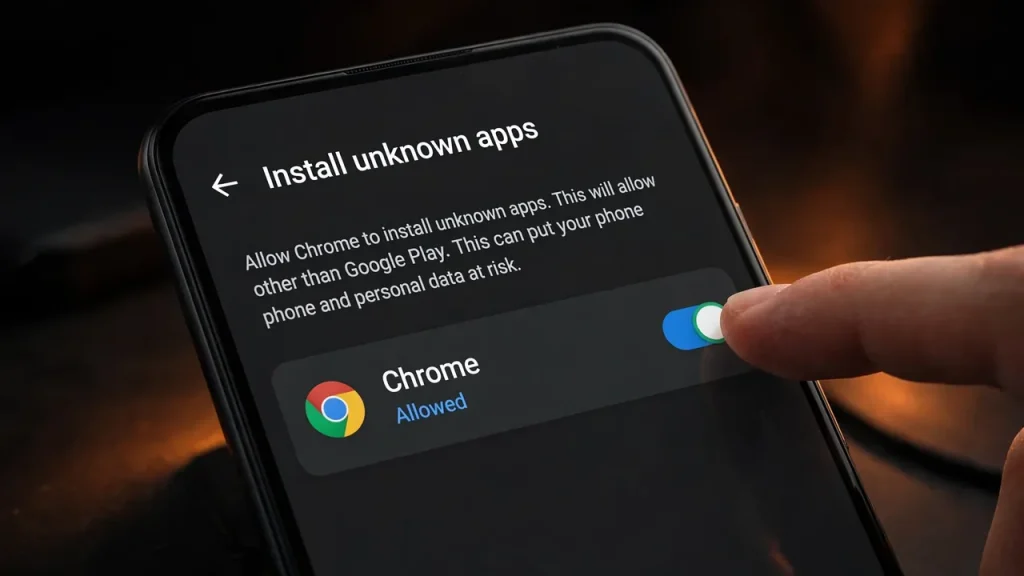
Step 2 — Allow installs from your browser. Android blocks installs from outside the Play Store by default. On Android 8 and newer you allow it per app — usually your browser or file manager. The exact path is in the sections below.
Step 3 — Open the APK file. Open your Downloads folder (or tap the download notification) and tap the .apk file. Android shows an install screen with the app name, version, and the permissions it wants. Read it before you continue.
Step 4 — Tap Install. Wait a few seconds while Android installs the app. When it finishes, the TeaTV icon appears on your home screen and in your app drawer.
Step 5 — Open TeaTV and finish setup. Open the app, accept the on-screen disclaimer, pick your language, and you are in. The first-launch settings below take another minute and are worth doing now.
Android 8 and Newer: Allow Installs From Your Browser
On Android 8 (Oreo) and later, the permission is per app, not global:
- Go to Settings → Apps (or Settings → Apps & notifications).
- Tap Special app access → Install unknown apps (on Samsung: Settings → Apps → ⋮ → Special access → Install unknown apps).
- Choose the app you downloaded the APK with — usually Chrome or your file manager.
- Turn on Allow from this source.
The next time you tap an APK from that app, Android installs it without asking again. If you downloaded the file with a different browser or a file manager, allow that app instead — the permission follows the app that opens the file, not the app that downloaded it.
Android 7 and Older: Unknown Sources
On Android 7 (Nougat) and older, the switch is global: Settings → Security → Unknown sources, then turn it on. Android warns you that installs from unknown sources can harm your device — that warning is real, which is why the three checks above come first. Turn the switch off again after installing if you want the extra safety.
Samsung, Xiaomi and Other Brands
The steps above work on stock Android, but brands rename the menus. On Samsung phones, the path is Settings → Apps → ⋮ (top right) → Special access → Install unknown apps. On Xiaomi / Redmi / Poco (MIUI), the toggle is under Settings → Privacy protection → Special permissions → Install unknown apps, and MIUI may ask a second time during the install — tap Allow both times. On OnePlus / Oppo / Vivo, look under Settings → Apps → Special app access. If you cannot find the menu, use Android’s Settings search bar and type “install unknown apps” — it jumps straight to the right screen on almost every brand.
First Launch: 4 Settings Worth Checking
TeaTV works out of the box, but four settings make the first session much better.
- Language. Pick your subtitle and interface language on first launch. TeaTV supports dozens of subtitle languages — set yours once instead of fixing it per title.
- Video quality. TeaTV lists links per title by quality, roughly 240p to 4K. Start with 720p on a phone; jump to 1080p only if it plays smoothly. Our TeaTV settings guide has the full quality table.
- Subtitles. Turn subtitles on and set the size in Settings before your first movie. If subtitles do not show, our subtitles fix guide covers every cause.
- Default player. TeaTV plays streams with its built-in TPlayer by default. If a stream will not play, switch the default player to MX Player or VLC in Settings. Our external player guide compares all three.
Android Phone vs Tablet vs Android TV Box
The same APK installs on all three, but the experience is different.
| Device | Install path | What changes |
|---|---|---|
| Android phone | Browser download + per-app permission (this guide) | Touch interface, best for watching on the go |
| Android tablet | Same as phone | Bigger screen; pick 1080p links when Wi-Fi allows |
| Android TV box | Same APK, sideloaded via browser or file manager | Remote-friendly interface; use a mouse or the TV remote; storage is tighter, so watch download sizes |
| Firestick | Downloader app + Developer Options | Different steps entirely — see our TeaTV for Firestick guide |
| Samsung / LG smart TV (Tizen / webOS) | APK does not run natively | Use a Firestick or Android TV box — see our TeaTV for Smart TV guide |
One warning for TV boxes: TeaTV downloads can fill small storage fast. If you download movies for offline viewing, keep an eye on free space — our offline downloads guide covers quality-vs-size choices and the download manager.
How to Update TeaTV on Android
TeaTV does not update through the Play Store, so updates are manual — but the app tells you when one exists.
- Open TeaTV, tap the hamburger menu (three lines, top-left).
- Tap Check Update. If a new version is available, the app says so.
- Download the new APK from the official site and install it over the old version — do not uninstall first, or you lose your settings and watch history.
- If Check Update reports nothing, you are on the latest version the app knows about.
For what changed in each version and when to prefer an older build, see our TeaTV latest version guide and old versions guide.
TeaTV APK Not Installing? 6 Fixes That Work
Install failures on Android almost always have one of six causes. Work down the list in order.
Fix 1 — “Parse error” or “There was a problem parsing the package”
The APK file is corrupt or incomplete — usually a download that stopped early. Delete the file, check your connection, and download it again. If the error repeats with a fresh download, the source’s file is bad: try the official site instead.
Fix 2 — “App not installed”
Android refuses the install without a clear reason. The two usual causes are (a) an existing TeaTV install with a conflicting signature — uninstall the old version first, then install; or (b) not enough free storage — free at least 100 MB and try again. Restarting the phone also clears this error more often than it should.
Fix 3 — “Blocked by Play Protect”
Google Play Protect sometimes flags sideloaded APKs. If you verified the file on VirusTotal and trust the source, tap Install anyway on the Play Protect screen (tap Details first — the option hides there). If you did not verify the file, do not bypass the block: delete it and get a clean copy.
Fix 4 — Not enough storage
TeaTV itself is only ~13.8 MB, but Android needs breathing room to unpack it. Clear cache (Settings → Storage) or delete a few unused apps, then retry. On TV boxes and old phones this is the most common install failure.
Fix 5 — The install button does nothing
Some screen-filter apps (blue-light filters, screen-dimming apps, chat-head overlays) block Android’s Install button as a security measure. Turn off any overlay or filter app, then tap Install again.
Fix 6 — “This app isn’t compatible with your device”
Your Android version is too old (TeaTV needs Android 5.0 or higher) or the APK is built for a different processor. Check your Android version in Settings → About phone. On Android 4.4 or older, TeaTV will not install — the only option is an older TeaTV build, which carries its own security risks; our old versions guide explains the trade-off honestly.
Still stuck after all six? Our TeaTV not-working fixes guide covers the wider set of app problems, and the buffering fix guide covers streams that install fine but will not play.
Is the TeaTV APK Safe on Android?
The APK itself is a small, free streaming app — the risk is not the install, it is where the file came from and what the app streams. A verified file from the official site, scanned on VirusTotal, installed with the checks above, is the safest version of this install. An APK from a random mirror with a wrong file size is not.
Two honest limits: TeaTV aggregates links to content it does not own, so what you watch carries copyright questions that vary by country — see Is TeaTV Legal. And because the app is no longer updated, new Android versions may eventually break it; our Is TeaTV Down guide shows how to tell an app problem from a dead source. The full safety checklist — permissions to review, VPN use, and what never to grant — is in our Is TeaTV Safe guide.
TeaTV APK for Android vs Other Devices
Android is the only platform where TeaTV installs as a plain APK. Everywhere else is a workaround:
- iPhone / iPad — no APK exists for iOS, so there is no direct install. The real options are signing workarounds and web alternatives in our TeaTV for iOS guide.
- Windows / Mac — no native app; TeaTV runs inside an Android emulator such as BlueStacks. See our TeaTV for PC guide.
- Firestick / Android TV — same APK, different install path (Downloader app / file manager). See TeaTV for Firestick and TeaTV for Smart TV.
- Mod APK — a modified build with premium features unlocked. It is a different file with different risks; our TeaTV Mod APK download guide covers it separately.
Frequently Asked Questions (FAQs)
Is the TeaTV APK free for Android?
Yes. TeaTV is free — no subscription, no account, and no payment is needed to install or use it. Any site charging for the APK is not official.
Why isn’t TeaTV on the Google Play Store?
TeaTV aggregates links to movies and TV shows it does not own, which conflicts with Play Store policies, so it is distributed as a direct APK download only. That is also why you sideload it instead of installing it from the store.
What Android version do I need for TeaTV?
Android 5.0 (Lollipop) or higher. The APK is around 13.8 MB, but keep at least 100 MB free so Android has room to unpack and install it.
Is it safe to install the TeaTV APK on Android?
It is as safe as the file you install. Download from the official site (teatv.net), check the version and file size, and scan the APK on VirusTotal before installing. Never install an APK from a source you cannot verify.
How do I update TeaTV on Android?
Open TeaTV, tap the hamburger menu, and tap Check Update. If a new version exists, download the new APK from the official site and install it over the old version — do not uninstall first, or you lose your settings and watch history.
Can I install TeaTV on an Android TV box?
Yes — the same APK installs on Android TV boxes via a browser or file manager, with the same per-app install permission. The interface is remote-friendly, and storage is tighter, so watch download sizes. Samsung and LG TVs running Tizen or webOS cannot run the APK natively and need a Firestick or Android TV box instead.
By Priya Sharma, Senior Content Writer • Reviewed by David Chen, Technical Researcher
About the author: Priya Sharma is a Senior Content Writer covering streaming apps and Android guides.
Reviewed by: David Chen, Technical Researcher, verified the install steps and version details in this guide.
