

TeaTV Black Screen Fix: 8 Ways to Get the Picture Back

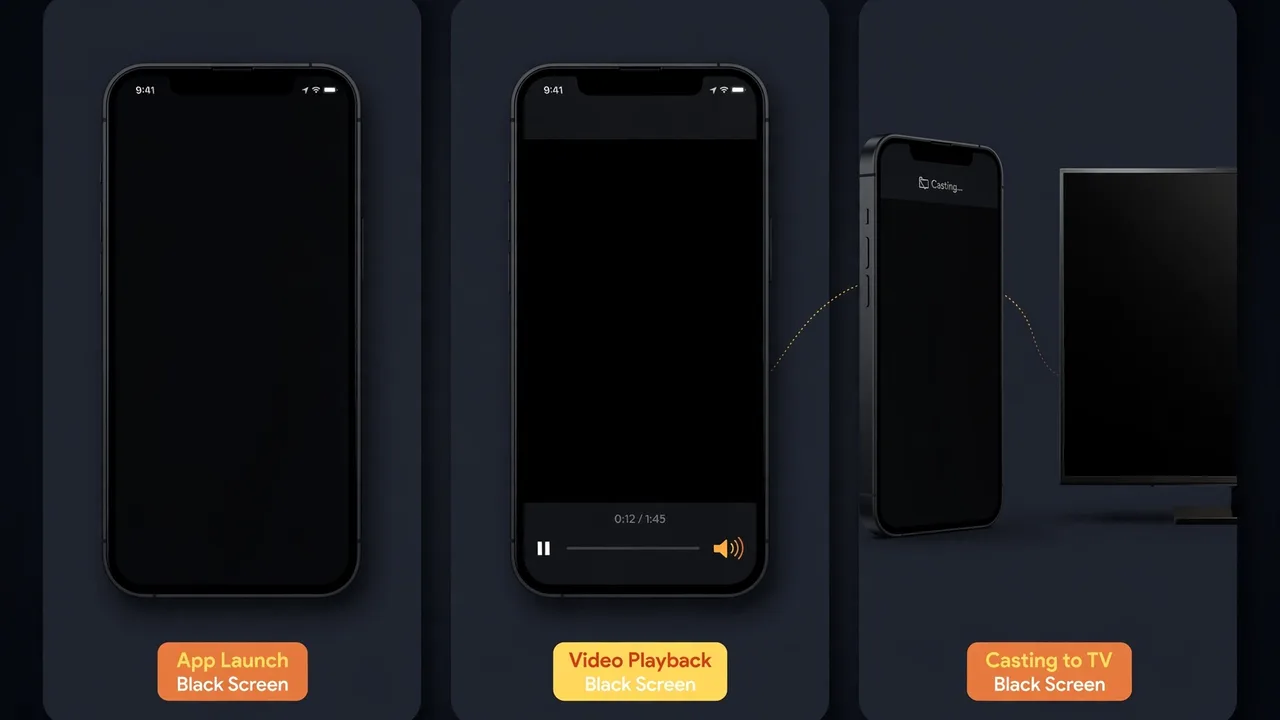
A TeaTV black screen is not one problem — it is three, and each one has a different fix. If TeaTV opens to a black screen and never loads, the app itself is usually blocked in your region or its cached data is corrupt. If the app opens fine but the video stays black when you press play, the streaming link or the video player is the problem. And if the picture goes black only when you cast or mirror to a TV, the connection between your phone and the TV is failing, not the app. This guide helps you work out which black screen you have in under a minute, then gives you the exact fix for it — eight fixes in total, ordered from quickest to most involved, including Firestick-specific steps. If you are dealing with a different TeaTV problem, our TeaTV not working fixes guide covers the full range of errors.
Table of Contents
First, Work Out Which Black Screen You Have
Fixing the wrong black screen wastes your evening, so start here. Match what you see to one of the three types:
| What you see | Type | Most likely cause | Jump to |
|---|---|---|---|
| TeaTV opens but stays black, menus never appear | Black on open | Region block, corrupt cache, or a bad update | Fixes 1–3 |
| Menus work, but pressing play gives a black video (sometimes with sound) | Black during playback | Dead source link, codec or player problem | Fixes 4–6 |
| Phone plays fine, but the TV shows black when casting or mirroring | Black when casting | Wi-Fi mismatch, HDCP handshake, VPN interference | Fixes 7–8 |
One extra check before any fix: is the screen truly black, or is the app frozen? If the app responds to taps (you can hear navigation sounds or feel vibrations) but shows nothing, it is a display or rendering failure — Fixes 2 and 3 apply. If nothing responds at all, treat it as a crash, not a black screen, and see our TeaTV keeps crashing fixes instead.
Fix 1: Force Stop TeaTV and Restart Your Device
This is the fastest fix and it resolves more black screens than any other single step, because it clears a stuck app process without touching your settings or data. On Android, go to Settings, then Apps, then TeaTV, and tap Force Stop. Then restart your phone or TV stick — a full restart, not just sleep. On a Firestick, hold the Select and Play buttons together for about ten seconds to restart, or unplug the stick for 30 seconds and plug it back in. Once the device is back up, open TeaTV and see whether the menus load. If the black screen is gone, you are done; if it returns after a few minutes, move on to Fix 2, because the cause is stored data, not a stuck process.
Fix 2: Clear TeaTV’s Cache (Not Its Data — Yet)
A corrupt cache is the most common cause of a black screen on open that survives a restart. TeaTV stores posters, metadata, and temporary playback files, and when that cache corrupts — usually after a failed update or a forced close — the app can open to nothing. On Android, go to Settings, then Apps, then TeaTV, then Storage, and tap Clear Cache. Do not tap Clear Data yet: clearing data also wipes your watchlist, favorites, and settings. On a Firestick, the path is Settings, then Applications, then Manage Installed Applications, then TeaTV, then Clear Cache. Relaunch TeaTV after clearing. If the app now loads normally, the corrupt cache was the problem. If the black screen persists, repeat the same path but tap Clear Data this time — this resets TeaTV to a fresh state, so you will need to set your preferences again, but it removes any corrupt configuration that cache-clearing cannot reach.
Fix 3: Test Whether TeaTV Is Blocked in Your Region
If TeaTV shows a black screen on open even after a cache clear and a restart, a region block is the next suspect. Some networks and countries block the servers TeaTV uses to load its catalog, so the app opens but can never fetch anything to display — which looks exactly like a black screen. The quick test is a VPN: connect to a server in a different country, force stop TeaTV, and relaunch it. If the app suddenly loads, the block was the cause, and keeping the VPN on while you use TeaTV is the workaround. If nothing changes with the VPN on, turn it off again before continuing — a VPN that is not helping can itself cause playback problems, which is why Fix 8 covers VPN interference separately. Note that a VPN is a workaround for a network block, not a cure for a broken app: if TeaTV loads with a VPN but videos still play black, your problem is now a playback black screen, so continue with Fix 4.
Fix 4: Switch to a Different Source Link
When the menus work but the video itself is black, the streaming link is the first suspect. TeaTV lists several source links for most titles, and they are not equal: one link can be dead, overloaded, or serving a file format your player cannot decode, while the next link plays perfectly. Go back to the title, open its source list, and try a different link — preferably one marked with a different host or a lower quality label. If the second link plays, the first link was the problem, and there is nothing wrong with your device or your install. If every link for one title plays black but other titles play fine, the problem is that title’s sources, not TeaTV: wait a few hours or pick another title. If every title plays black, the player or the device is the problem — continue to Fix 5.
Fix 5: Switch to an External Player (MX Player or VLC)
A black video with working sound is the classic sign of a codec gap: the video stream uses a format TeaTV’s built-in player cannot decode, so you hear the audio while the picture stays black. The fix is to hand playback to a player with wider codec support. In TeaTV’s playback settings, or from the player screen if your version offers it, set the default player to an external player and install MX Player or VLC from a trusted source if you do not already have one. VLC in particular handles an unusually wide range of formats, and its official site is videolan.org. Replay the same title through the external player: if the picture appears, the built-in player was the bottleneck, and you can leave the external player as your default. This fix also helps with the related problem of subtitles not matching the video — our TeaTV subtitles fix covers subtitle sync in detail.
Fix 6: Lower the Quality and Check Your Connection
A black screen during playback can also mean the stream never actually started: a link that stalls on loading can sit on a black frame indefinitely, especially on a slow or unstable connection. This is easy to confuse with a dead link, so test it before reinstalling anything. First, drop the quality for the same title — if 1080p or 4K stays black, try 720p or 480p. A lower-quality stream needs far less bandwidth to start, and if it plays, your connection was the bottleneck, not the app. Second, run a quick speed check and, if you are on Wi-Fi, move closer to the router or restart it. Third, if you use Real-Debrid, try the same title with and without it: a premium link that stalls points to a Real-Debrid or account issue, which our Real-Debrid with TeaTV guide troubleshoots separately. If lowering the quality fixes playback but you keep hitting the same problem, our TeaTV buffering fix covers connection-side tuning in depth.
Fix 7: Fix Black Screen When Casting or Mirroring
When TeaTV plays fine on your phone but the TV shows black, the app is not the problem — the cast or mirror session is. Work through these checks in order:
- Same Wi-Fi network. Your phone and your Chromecast, smart TV, or Firestick must be on the same Wi-Fi network, and on the same band where possible — a phone on 5 GHz and a TV on 2.4 GHz can fail to handshake even though both are “on Wi-Fi”.
- Restart the cast session. Stop casting, force stop TeaTV, reopen it, and cast again. A stale cast session is the most common cause of a black TV screen with audio still playing on the phone.
- Restart both ends. Restart your phone and your TV or Chromecast dongle. HDCP — the copy-protection handshake between devices — can fail silently after either device sleeps, and a restart forces a fresh handshake.
- Try mirroring instead of casting, or the reverse. If in-app casting gives a black screen, try full screen mirroring; if mirroring is black, try the in-app cast button. They use different paths, and one often works when the other does not.
- Check the cable and input on wired setups. If you mirror through an adapter, try a different HDMI port and cable — a loose or faulty cable produces exactly this symptom.
Our Chromecast casting guide walks through both methods step by step.
Fix 8: Turn Off VPNs, Ad Blockers, and Battery Savers That Interfere
This fix sounds contradictory after Fix 3, but it is the other half of the picture: the same tools that unblock TeaTV can also break it. A VPN routed through an overloaded or distant server can stall video loading into a black frame. An ad blocker or private DNS filter can block the servers TeaTV uses to fetch posters and links, leaving a black screen on open. And aggressive battery optimization on some Android phones kills TeaTV’s background processes mid-playback, which can freeze the video on black. Test it by turning off your VPN, ad blocker, or private DNS one at a time, force stopping TeaTV after each change, and relaunching. If the picture returns when one of them is off, you have found the conflict: either leave it off while using TeaTV or switch it to a different server or filter list. Also check battery settings for TeaTV and set it to Unrestricted if your phone offers that option, so the system does not kill playback in the background.
TeaTV Black Screen on Firestick: What Is Different
Firestick users hit black screens more often than phone users, for three device-specific reasons. First, Fire OS aggressively clears background apps on low-memory sticks, so a Firestick with nearly full storage can open TeaTV to black — free up space by uninstalling apps you do not use and clearing cache for the apps you keep. Second, Amazon sometimes disables sideloaded apps after a Fire OS update, which can leave TeaTV present but unable to launch properly; check Settings, then Applications, then Manage Installed Applications, then TeaTV, and confirm it is enabled, then launch it from there. Third, HDCP handshake failures are more common on older TVs connected through receivers or HDMI switches — if mirroring or playback is black only on the TV, try connecting the stick directly to the TV and bypassing the receiver. Our TeaTV for Firestick guide covers the full install and settings path for Fire TV devices.
When It Is Not Your Device: Server-Side Black Screens
Sometimes the black screen is not fixable from your side at all. If TeaTV’s catalog servers or the sources it pulls links from are down, the app can open to black or play black across every title, on every device, no matter what you reinstall. The telltale sign is that nothing in this guide changes anything and other users report the same problem at the same time. In that case, the honest move is to wait: check back in a few hours rather than reinstalling repeatedly, since a reinstall cannot fix a server outage. If you are unsure whether TeaTV itself is down or just your setup, our fixes guide‘s server-status section explains how to tell the difference, and the no streams available fix covers the closely related case where titles load but no links appear.
Prevention: Keep the Black Screen From Coming Back
- Keep TeaTV updated to the latest version — most black-screen bugs are fixed in updates, and our latest version guide explains how updating works.
- Clear TeaTV’s cache once every few weeks, before corruption builds up.
- Do not run a VPN, ad blocker, and private DNS filter all at once while streaming — pick the one you need.
- Keep at least 500 MB free on Firesticks and low-storage phones.
- If you use an external player, keep it updated too — an outdated player reintroduces the codec gaps Fix 5 removes.
Frequently Asked Questions (FAQs)
Why does TeaTV show a black screen when I open it?
The most common causes are a corrupt app cache, a region block on TeaTV’s servers, or a bad update. Force stop the app and restart your device first, then clear TeaTV’s cache, and test with a VPN if the problem survives both steps.
Why is my TeaTV black screen only on Firestick?
Firestick black screens are usually low storage, a Fire OS update disabling the app, or an HDCP handshake failure with the TV. Free up storage, confirm TeaTV is enabled in Manage Installed Applications, and try plugging the stick directly into the TV.
TeaTV plays sound but the video is black — what is wrong?
That is almost always a codec problem in the built-in player: the audio decodes but the video format does not. Switch to an external player such as MX Player or VLC, which support far more formats, and replay the same title.
Does a VPN fix the TeaTV black screen?
Only when the cause is a region block. If TeaTV loads with a VPN on but not with it off, keep the VPN on while using TeaTV. If the VPN changes nothing, turn it off — a slow VPN server can itself cause black playback.
Why is TeaTV black only when I cast to my TV?
Casting black screens come from the connection, not the app: different Wi-Fi networks, a stale cast session, or a failed HDCP handshake. Restart both devices, confirm both are on the same Wi-Fi network, and try mirroring if in-app casting stays black.
Should I reinstall TeaTV to fix a black screen?
Only as a last resort, after Fixes 1–8. A clean reinstall fixes corrupt installs, but it wipes your watchlist and settings, and it cannot fix region blocks, dead source links, or server outages — so work through the cheaper fixes first.
By Priya Sharma, Senior Content Writer • Reviewed by David Chen, Technical Researcher
About the author: Priya Sharma is a Senior Content Writer covering streaming apps and Android guides, with a focus on practical troubleshooting readers can follow step by step.
Reviewed by: David Chen, Technical Researcher, verified the device steps and player recommendations in this guide against current Android, Fire OS, and Chromecast behavior.
