
How to Block Ads on TeaTV (2026): 5 Methods That Actually Work

To block ads on TeaTV, use Android’s Private DNS setting with an ad-filtering hostname such as dns.adguard-dns.com, or install the free Blokada 5 app — both remove most banner and pop-up ads without paying anything. If you use a Firestick, which has no Private DNS setting, Blokada or a VPN with a built-in ad blocker (such as Surfshark’s CleanWeb) is the way to go. There is no official ad-free switch inside TeaTV itself, and no paid version of the app. This guide walks through all five methods, which devices each one works on, and the ads that no method can remove.
Table of Contents
What Ads Does TeaTV Show?
TeaTV used to be almost ad-free. That changed: the app now integrates advertisements directly into its interface, and the two ad types users run into are different problems with different fixes.
- Banner ads on the home screen. A large banner sits on TeaTV’s home screen while you browse movies and TV shows. These are served from advertising networks, which is exactly why DNS-level and VPN-level blocking can remove them.
- Pop-up ads when you exit playback. After you finish watching a movie or episode and leave the player, a full-screen pop-up can appear. These are also served from ad networks, so the same blocking methods work on them.
- Ads inside live TV channels. If you use TeaTV’s Live TV feature, the channels themselves carry their own commercial breaks. Those ads are part of the broadcast stream, not something TeaTV inserts — no ad blocker can remove them. (See our guide to TeaTV live TV with M3U playlists.)
One more thing worth knowing before you start: TeaTV’s developers appear to have stopped updating the app — TROYPOINT reports that launching the app now shows a message to that effect. That means the ad situation can change without warning, and a method that works today may need adjusting later.
Before You Start: There Is No In-App “Turn Off Ads” Switch
Search TeaTV’s settings and you will not find an ad toggle, a premium upgrade, or an ad-free subscription. TeaTV is a free app with no paid tier, and it has never offered an official way to remove its ads. That means every working method blocks the ads from outside the app: at the DNS level, with a blocking app, or through a VPN. None of them touch TeaTV’s own code, and none of them require you to reinstall the app or lose your watchlist. One more note on expectations: blocking ads will not make streams faster or fix buffering — that is a different problem, covered in our TeaTV buffering fix guide.
Method 1 — Block Ads on TeaTV With Private DNS (Free, Android Only)
Private DNS is the easiest free way to block ads on TeaTV, and it needs no app at all. Android has included this setting since Android 9: it sends your device’s domain lookups through an encrypted connection to a DNS provider you choose, and if that provider filters advertising domains, the ads never load. Point it at AdGuard’s public DNS and TeaTV’s banner and pop-up ads simply fail to load, while the app itself keeps working.
How to set up Private DNS to block ads on TeaTV
- Open Settings on your Android phone or tablet.
- Go to Network & Internet (on Samsung devices: Connections, then More connection settings).
- Tap Private DNS. If you do not see it, use the search box at the top of Settings and type “Private DNS”.
- Select Private DNS provider hostname.
- Type dns.adguard-dns.com exactly as written — a hostname, not an IP address — and tap Save.
- Close TeaTV completely (swipe it away from recent apps) and reopen it. The banner ad on the home screen should be gone.
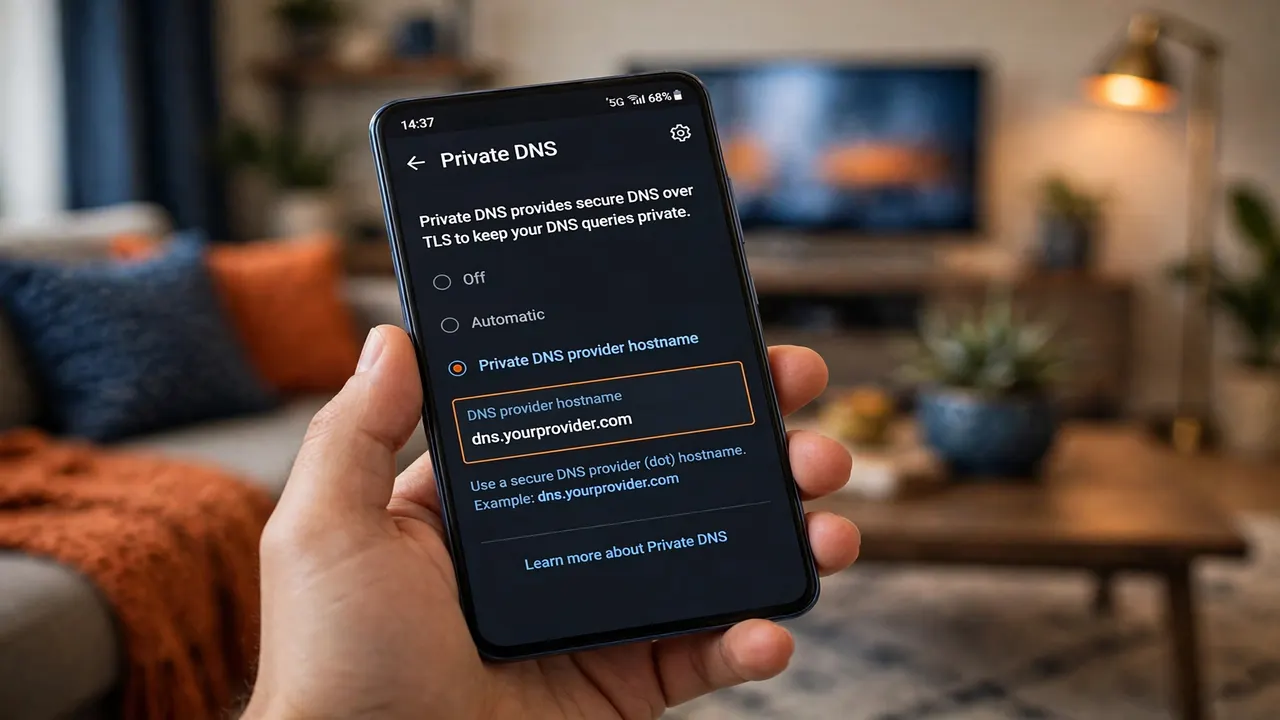
That is the whole setup. It takes under a minute, it applies to every app on the device (not just TeaTV), and it survives reboots. To undo it, go back to the same screen and choose Automatic.
Which Private DNS hostname should you use?
Use dns.adguard-dns.com (AdGuard’s default public server — blocks ads, trackers, and phishing domains). For a household with kids, family.adguard-dns.com adds adult-site blocking and Safe Search. unfiltered.adguard-dns.com blocks nothing and is only useful for testing whether Private DNS is the cause of a connection problem.
Do not type an IP address such as 94.140.14.14 into this field — Android’s Private DNS box expects a hostname, and an IP address will fail. If a hotel or office Wi-Fi blocks encrypted DNS, your connection may report “no internet” until you switch Private DNS back to Automatic.
Where Private DNS works — and where it does not
Private DNS works on Android phones and tablets (Android 9 and later) and on Android TV / Google TV devices that expose the setting. It does not work on Amazon Firestick or Fire TV, because Fire OS does not expose a Private DNS menu at all — Firestick users should use Method 2 or Method 3 below. It also does not work on Windows or Mac, so if you run TeaTV on a PC through an emulator, use Method 3 or Method 4 instead (see our TeaTV for PC guide).
Method 2 — Block Ads on TeaTV With Blokada (Free, Android + Firestick)
Blokada is a free, open-source ad blocker that works across all apps on your device. The version to use is Blokada 5, the free version that runs a local VPN on your device to filter ad domains — no root needed — and it works on devices where Private DNS is not available, including Firestick.
How to install Blokada 5 on Android
- Go to the official Blokada website at blokada.org and download Blokada 5 for Android. Do not download Blokada from random APK sites — get it from the developer’s own site.
- Install the APK and open Blokada.
- Tap the large power button to turn blocking on. Blokada will ask you to allow a VPN connection — this is a local, on-device VPN that filters traffic; it does not send your data to a remote server.
- Open TeaTV. The banner and pop-up ads should be gone.
How to install Blokada on Firestick
Firestick is where Blokada earns its place, because it is the only free method that works there without a paid VPN.
- On your Firestick, go to Settings > My Fire TV > Developer Options and turn on Apps from Unknown Sources. (On newer Fire OS versions, Developer Options is hidden — tap the device name in Settings > My Fire TV > About seven times to reveal it. Full steps are in our TeaTV for Firestick guide.)
- Install the Downloader app from the Amazon Appstore if you do not have it already.
- Open Downloader and enter the official Blokada download page URL, https://blokada.org/, then download and install Blokada 5.
- Open Blokada, tap the power button to activate it, and allow the VPN connection prompt.
- Open TeaTV and check the home screen — the banner ad should be gone.
One caveat: Blokada’s local VPN occupies your device’s single VPN slot. If you also run a VPN app for privacy while streaming, you cannot run both at the same time — in that case, use Method 3 instead, which combines the VPN and the ad blocker in one app.
Method 3 — Block Ads on TeaTV With a VPN Ad Blocker (Paid, All Devices)
If you already use a VPN while streaming — which we recommend for any unverified streaming app — the simplest option is a VPN with a built-in ad blocker. The best-documented example for TeaTV is Surfshark’s CleanWeb feature: TROYPOINT’s TeaTV guide shows it removing both the home-screen banner and the exit-playback pop-ups.
- Subscribe to Surfshark and install its app on your device (Android, Firestick, Android TV, Windows, or Mac).
- Open Surfshark, log in, and connect to a VPN server.
- Go to Settings, find CleanWeb, and toggle it on.
- Open TeaTV — the ads should be gone.
CleanWeb blocks ads, trackers, and malware domains at the network level, so it works across every app on the device, including TeaTV. The trade-off is cost: unlike Methods 1 and 2, this one requires a paid VPN subscription, and it only works while the VPN is connected — disconnect, and the ads come back. Other major VPNs offer similar built-in ad-blocking features, but check that the feature is included in the plan you buy: a plain VPN without an ad blocker will hide your IP address but will not block ads on TeaTV.
Method 4 — Block Ads on TeaTV at the Router (Whole Home, Advanced)
If everyone in your household watches TeaTV on different devices, you can block the ads once for the whole network instead of setting up each device separately. Change your router’s DNS servers to AdGuard’s public DNS — 94.140.14.14 and 94.140.15.15 — and every device on your Wi-Fi, including Firesticks and smart TVs, gets ad filtering without installing anything. The steps depend on your router model: log in to its admin page, find the LAN / DHCP / DNS settings, replace the DNS server addresses with AdGuard’s, save, and restart the router. This is the most powerful method here, but also the least flexible: you cannot easily turn it off for one device, and if the filter ever blocks something you need, you have to change the router setting to fix it. For most people, Method 1 or 2 on the device itself is the better choice.
Method 5 — The “Ad-Free Mod APK” Route: Why We Do Not Recommend It
Search for “teatv no ads” and the top results are not guides — they are download pages for modified TeaTV APKs that promise “AD Removed” or “No Ads” as a built-in feature. The pitch is tempting: install the mod, and the ads are gone without any settings to change. We do not recommend it, and here is why.
You cannot verify what was changed. A modified APK is the original app with someone else’s edits. The download pages claim the changes are only ad removal, but you have no way to check whether tracking code or malware was added in the process. Our TeaTV safety review explains the same risk in detail: unverified APKs from third-party hosts are the single biggest security risk in this niche.
“Ad-free” mods are a common fake. Many sites advertise an “ad-free mod” and deliver an outdated or repackaged build that still shows ads — or worse, shows different ads. TeaTV is APK-only and is not on the Google Play Store at all, so any “official ad-free version” claim should be treated with suspicion.
Mods do not update. When TeaTV changes, a modded build can break without warning and leave you hunting for yet another download from yet another unknown host.
If you want a genuinely ad-free experience without these risks, use the standard app with Method 1 or 2. If you do choose to use a modded build anyway, read our TeaTV mod APK download guide first, scan every file before installing, and never install a mod from a site you have not vetted. If you still need the standard app itself, start from our TeaTV APK download guide.
What You Cannot Block on TeaTV
No method on this list removes every ad, and an honest guide should say so.
- Ads inside live TV channels. The commercials in a live TV stream are part of the broadcast. DNS and VPN blockers cannot edit a video stream, so these stay.
- Promotional banners served from TeaTV’s own servers. If an ad is served from the same domain as the app’s own content rather than an ad network, DNS filtering cannot tell it apart from the content itself. Most of TeaTV’s ads do come from ad networks, which is why the methods above work — but an occasional in-app promo can survive.
- Ads that return after an update. If TeaTV updates, or if an ad network changes its domains, a block list can go stale. When ads suddenly reappear, update Blokada’s block lists, or check whether your Private DNS setting was reset.
Which Method Should You Pick to Block Ads on TeaTV?
| Method | Cost | Devices | Difficulty | Blocks |
|---|---|---|---|---|
| Method 1. Private DNS (AdGuard) | Free | Android phone/tablet, Android TV | Easy (1 minute) | Banner + pop-up ads, device-wide |
| Method 2. Blokada 5 | Free | Android, Firestick, Android TV | Easy–Medium | Banner + pop-up ads, device-wide |
| Method 3. VPN ad blocker (CleanWeb) | Paid | Android, Firestick, Android TV, PC | Easy | Banner + pop-up ads, plus VPN privacy |
| Method 4. Router DNS (AdGuard) | Free | Every device on your Wi-Fi | Advanced | Banner + pop-up ads, whole home |
| Method 5. “Ad-free” mod APK | Free | Android | Easy — but risky | Ads in the app, if the build is genuine |
Our recommendation: on an Android phone or tablet, start with Method 1 (Private DNS) — free, takes a minute, and needs no app. On a Firestick, use Method 2 (Blokada), because Fire OS has no Private DNS setting. If you already pay for a VPN, use Method 3 and get privacy and ad blocking in one app.
Ads Still Showing? Troubleshooting
Work through these in order. Most “it didn’t work” cases are one of the first three.
- Fully close and reopen TeaTV. A DNS or blocker change only affects new connections. If TeaTV was already running, swipe it away from recent apps and open it again.
- Check that the blocker is actually on. In Blokada, the power button must be on; in Surfshark, CleanWeb must be toggled on and the VPN connected; in Private DNS, the hostname must be saved (a typo such as dns.adguard.com instead of dns.adguard-dns.com silently fails).
- Restart the device. On Firestick especially, a restart clears cached DNS entries that can keep showing old ads.
- Check for a VPN conflict. Blokada uses your device’s VPN slot. If another VPN app is connected, Blokada cannot start — disconnect the VPN, or switch to a VPN with a built-in ad blocker instead.
- Update your block lists. In Blokada, open the app and update the block lists, then restart TeaTV. Ad networks change domains, and a stale list misses new ones.
- Confirm the ads are actually TeaTV’s. If the ad appears inside a live TV channel, it is a broadcast commercial and no blocker can remove it. If it appears on the home screen or after playback, it is a TeaTV interface ad and the methods above should remove it.
If TeaTV itself stops loading titles or streams after you change DNS settings, switch Private DNS back to Automatic (or disconnect Blokada) and see whether the problem clears — a misconfigured DNS hostname can break connectivity, and that is a settings problem, not a TeaTV outage. Genuine outages are covered in our guide to checking whether TeaTV is down.
Final Verdict
The best way to block ads on TeaTV is the free one: Private DNS with AdGuard on Android, or Blokada 5 on Firestick. Both remove the banner and pop-up ads that make the app annoying, without paying for anything or trusting a modified APK from an unknown source. A VPN with a built-in ad blocker is the right choice only if you already pay for the VPN. And whatever method you choose, keep your expectations honest — the commercials inside live TV streams are part of the broadcast and no blocker will remove them.
How do I block ads on TeaTV?
The easiest free way to block ads on TeaTV is Android’s Private DNS setting: go to Settings > Network & Internet > Private DNS, choose “Private DNS provider hostname”, and enter dns.adguard-dns.com. On a Firestick, which has no Private DNS setting, install the free Blokada 5 app instead. Both methods remove most banner and pop-up ads.
Does TeaTV have an ad-free setting?
No. TeaTV has no in-app ad toggle, no premium upgrade, and no ad-free subscription. The ads must be blocked from outside the app — with Private DNS, an ad-blocker app such as Blokada, or a VPN with a built-in ad blocker.
Is there a TeaTV ad blocker app?
Yes — Blokada 5 is a free, open-source ad blocker that works on Android and Firestick and blocks TeaTV’s banner and pop-up ads across all apps. VPNs with built-in ad blockers, such as Surfshark’s CleanWeb, also work. There is no official TeaTV ad-blocker app from TeaTV itself.
Can I block ads on TeaTV on Firestick?
Yes. Install Blokada 5 on your Firestick (via the Downloader app, after enabling Apps from Unknown Sources) and turn it on, or use a VPN with a built-in ad blocker such as Surfshark CleanWeb. Firestick has no built-in Private DNS setting, so the Android Private DNS method does not work there.
Does the TeaTV mod APK really remove ads?
Some modified TeaTV APKs do remove the app’s ads, but downloading them from untrusted hosts is risky — you cannot verify what else was changed in the file, and fake “ad-free” builds are common. The safer route is the standard app with Private DNS or Blokada, which removes the same ads without installing a modified file.
Why are ads still showing on TeaTV after I blocked them?
The most common causes are TeaTV still running with cached ads (fully close and reopen it), a typo in the Private DNS hostname, Blokada or CleanWeb being switched off, or a VPN conflict (Blokada needs the device’s VPN slot). Ads inside live TV channels are broadcast commercials and cannot be blocked by any method.
By Priya Sharma, Senior Content Writer • Reviewed by David Chen, Technical Researcher
