
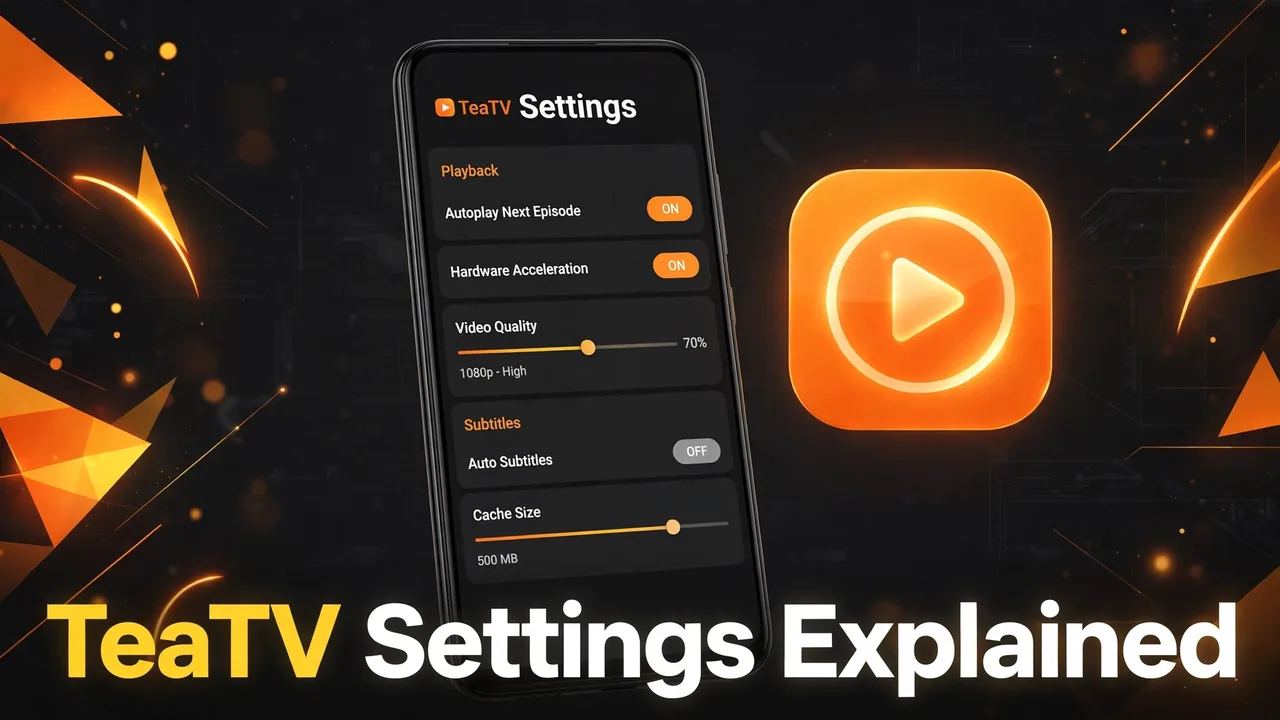
TeaTV Settings Explained: Quality, Subtitles, Downloads & Player

Teatv settings live in one place: open TeaTV, tap the hamburger menu (the three lines in the top-left corner), and choose Settings. From there you control the default player, video quality, subtitles, downloads, Real-Debrid and Trakt logins, Live TV playlists, and update checks. Most people never open this menu — this guide covers every group and gives the recommended value for each. One honest note: the developers appear to have stopped updating the app, so these settings still work — but no new features are coming. New to the app? Start with what TeaTV is and our TeaTV APK download guide first.
Table of Contents
TeaTV Settings at a Glance
The whole guide in one table; the sections below explain each row.
| Settings group | What it controls | Recommended value |
|---|---|---|
| Default player | Which app plays streams | MX Player, VLC, or TPlayer |
| Default player action | What Play does | Play, not Download |
| Show HD links first | Link sorting | On; start with 720p links |
| Subtitles | Language, size, background | Your language; +20–30% size; semi-transparent background |
| Downloads | Download quality, storage | 720p phones, 1080p TVs; check free space |
| Real-Debrid | Premium links | Log in; hosters + torrents on; Auto-Debrid on |
| Trakt | Watchlist/history sync | Log in with a free account |
| Live TV (M3U) | Channel playlists | Legal, free playlists only |
| TV shows | Episode autoplay | Auto select episode: On; Auto next episode: On |
| Updates | Version-check frequency | Every 1–2 days (expect no new version) |
| Ads | — | No ad toggle exists in Settings |
Default Player Settings (Teatv Default Player Setting)
By default, TeaTV hands every stream to TPlayer, its companion player app, which has the weakest subtitle controls of the three options.
To change it: Menu → Settings → Set Default Player (“Choose Player” or “Player” on some builds) → pick MX Player, VLC, or TPlayer.
- MX Player — best for subtitles: best sync and external .srt support, plus hardware decoding.
- VLC — best fallback: widest codec support, no ads, same on Android, Firestick (sideloaded), and PC — try it if a stream will not play in the other two.
- TPlayer — simplest: already integrated, zero setup.
Set the default player action to Play, not Download. With it set to Download, every Play press saves a file instead of streaming.
If the prompt never appears, clear TeaTV’s defaults in Android (Android Settings → Apps → TeaTV → Set as default → Clear defaults), then press play again. Our TeaTV external player guide has the full TPlayer vs MX Player vs VLC comparison, the clear-defaults steps, and the copy-link method that works even when the prompt never shows up.
Video Quality Settings (Teatv Video Quality Settings)
TeaTV has no master resolution switch: quality depends on the links found for a title and the settings that sort them.
Show HD links first
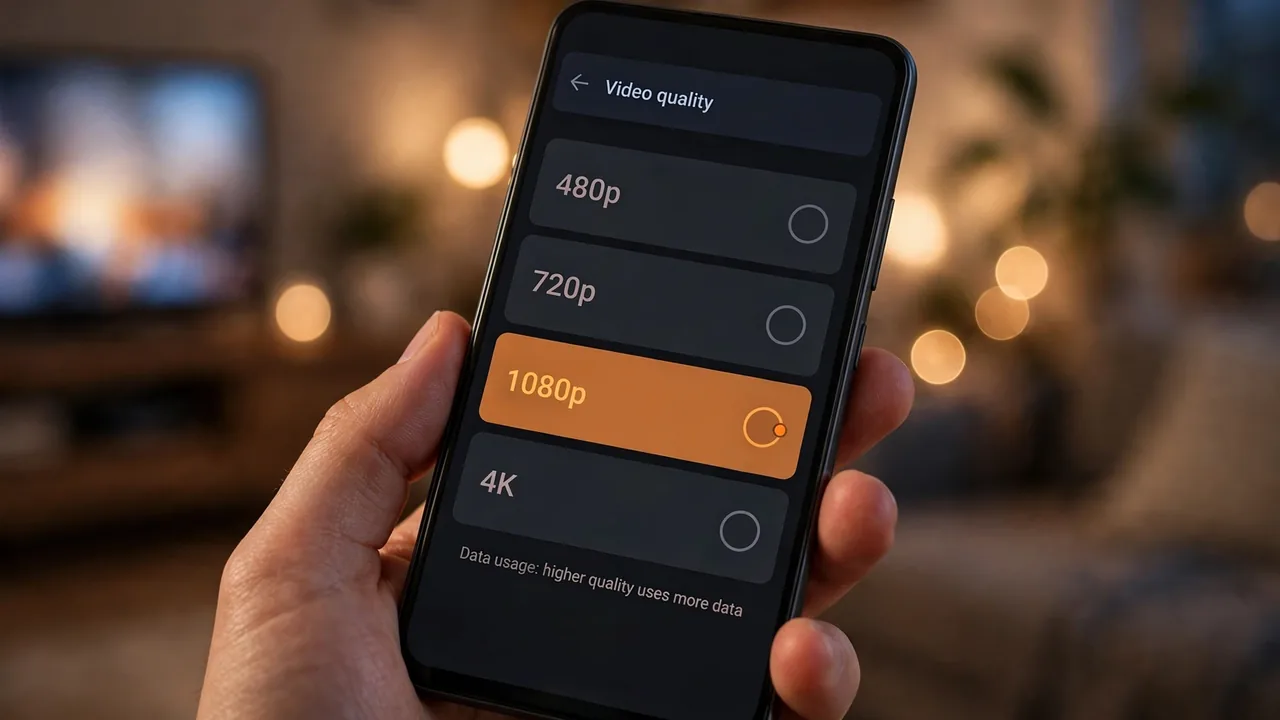
Turn Show HD links first to On (Menu → Settings → General or Playback). TeaTV then sorts each title’s link list so high-definition links appear at the top instead of buried under low-quality ones. It cannot create HD links that do not exist.
What quality should you pick per link?
Every title lists its links by quality, roughly 240p to 4K. Start with 720p; if it plays smoothly, switch to 1080p. Jumping straight to 4K on a phone wastes data — you cannot see the difference on a 6-inch display — and 4K links buffer most. On a big TV, pick 1080p when your Wi-Fi can handle it. Our TeaTV movies guide covers finding films in the first place.
| Quality | Best for | Needs roughly |
|---|---|---|
| 240p / 360p | Very slow connections only | Under 1 Mbps |
| 480p (SD) | Small screens, capped data | 1–3 Mbps |
| 720p (HD) | Phones/tablets (default) | 3–5 Mbps |
| 1080p (Full HD) | TVs, laptops, big tablets | 5–10 Mbps |
| 4K (Ultra HD) | Big TVs, fast Wi-Fi | 25 Mbps or more |
Real-Debrid users see more high-quality links. If every link buffers, the problem is your connection or the sources — see our TeaTV buffering fix guide.
Subtitle Settings (Teatv Subtitle Settings)
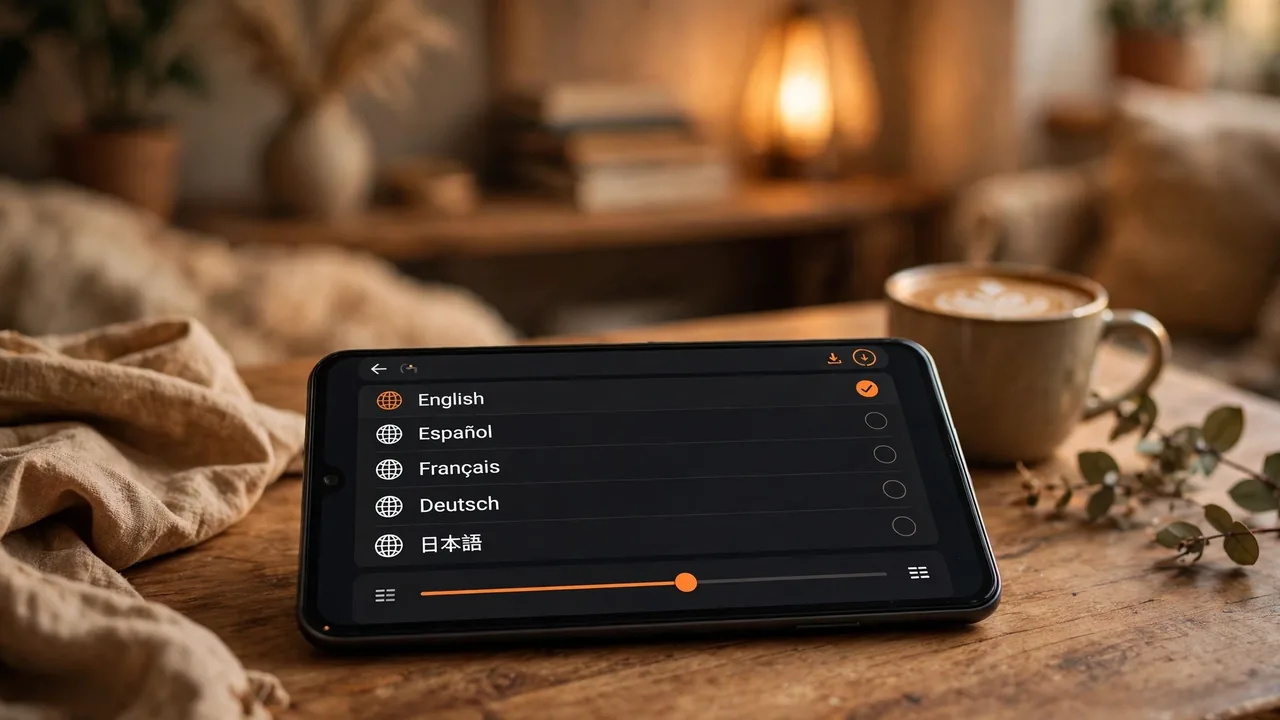
Subtitle settings live in Menu → Settings → Subtitles and apply to every title — set them once and forget them.
- Subtitle language: your language. TeaTV supports subtitles in 50+ languages, and this is the default for every film and episode.
- Text size: increase it by 20–30% over the default. The default is small on TVs and phones in bright light.
- Subtitle background: semi-transparent. A semi-transparent dark box keeps subtitles readable over bright scenes without covering half the picture.
Two limits. Subtitle sync is a player control, not a TeaTV setting: if subtitles lag the dialogue, adjust the subtitle delay in your player while the video plays (MX Player and VLC both have this control). And subtitle availability varies by link: if your language is missing, try a different link for the same title — some sources carry no subtitles. If subtitles do not appear at all, the full ladder (including external .srt files) is in our TeaTV subtitles fix guide. For subtitle files, OpenSubtitles is the largest free subtitle database.
Download Settings (Teatv Download Settings)
TeaTV can save a movie or episode for offline viewing. The choices that matter are quality and space.
To download: open a title, tap the Download icon (below the player, next to Play), and pick a quality. It appears in TeaTV’s Downloads section; when finished, open Downloads and press play — no internet needed.
Download quality: 480p, 720p, or 1080p?
The usual choices are 480p, 720p, and 1080p. 480p makes the smallest files, best for tight storage or a phone. 720p is the best balance for a phone or tablet, roughly half the size of 1080p. 1080p is for TVs, but the files are large, so check free space first. Options depend on the link — a title with only low-quality links will not offer 1080p.
Where downloads go, and the storage warning
Downloads live in TeaTV’s Downloads section in the sidebar. No exact folder path is given here — it varies by Android version, and a wrong path is worse than none.
Watch storage, not folders. A 1080p film is a big file and a Firestick has very little free space. Download over Wi-Fi, one or two titles at a time, and delete finished downloads you have watched. The rest — stuck downloads, space needs, Firestick warnings — is in our guide to downloading on TeaTV for offline viewing. Do not re-download a film you already have: check Downloads first.
Accounts in Settings: Real-Debrid, Trakt & Premiumize
Nothing here is required, but these logins are the biggest upgrades available.
Real-Debrid login
Real-Debrid is a paid service that turns premium file-host links into fast, high-quality streams. In TeaTV: Menu → Settings → Account → Real-Debrid Login (“Premium Account” or “RD Login” on some builds). TeaTV shows a code; enter it at Real-Debrid in any browser and the account links. Its links then appear at the top of source lists, usually marked yellow. Recommended: hosters and torrents on, Auto-Debrid on. Full setup and costs: Real-Debrid with TeaTV.
Trakt login
Trakt is a free service that syncs your watchlist, watch history, and progress across devices. In TeaTV: Menu → Settings → Account → Login Trakt.tv Account. TeaTV shows a code; enter it on the Trakt site (trakt.tv/activate) in a browser. After that, a film marked watched on your phone shows as watched on your Firestick. Create a free account at Trakt first. Full walkthrough and “Trakt not working” fixes: TeaTV Trakt setup.
Premiumize login
A second debrid option works the same way via Menu → Settings → Login to Premiumize (API key); you only need one debrid service, so if you already have Real-Debrid, skip Premiumize.
Live TV (M3U) Settings
Live TV has no channels built in — it works only after you import an M3U playlist, a text list of live stream addresses: Menu → Live TV → + → Import Playlist from Internet → name it, paste the M3U URL, and select it.
Use legal, free playlists only — public news channels and free-with-ads lineups. Avoid paid-channel bundles, random forum links, and lists a seller charges for. Sources, managing lists, and fixes: our TeaTV Live TV with M3U guide.
TV Shows & Browsing Settings
Two toggles in the General group make binge-watching smoother: Auto select episode: On and Auto next episode: On. Both are safe to leave on — you can still pick a different episode any time.
Flagged note: one guide (HoBSoft) lists a Kids Mode that restricts mature content, but no other current source documents it — if your build shows it, use it on a shared device; if not, your build does not have it.
There is no ad toggle in TeaTV’s settings — the free app has never offered an ad-free switch, so ads are blocked from outside the app. Our guide to blocking ads on TeaTV covers the five working methods, and our TeaTV safety review covers the risks of the app itself.
App Settings: Updates, Appearance & Storage
Update check frequency: 1–2 days (Menu → Settings → General). But the developers appear to have stopped updating the app, so a check will likely find nothing — and there is a Check Update item in the hamburger menu that checks on demand. Do not treat the setting as a promise of a new version.
Appearance: the interface is dark-themed out of the box. No light/dark toggle was verified in v11.1.7r, so do not hunt for one.
Storage and cache: if the app misbehaves, clear the cache (Android Settings → Apps → TeaTV → Storage → Clear cache) — it keeps your watchlist and logins. Clearing data wipes settings and logins, so use it only before reinstalling.
Recommended TeaTV Settings: The 2-Minute Setup
Just installed TeaTV? Do these in order — about two minutes.
- Default player: Menu → Settings → Set Default Player → MX Player (install it first; VLC as backup).
- Default player action: Play, not Download.
- Show HD links first: On.
- Subtitles: your language; text size +20–30%; background semi-transparent.
- Auto select episode: On. Auto next episode: On.
- Real-Debrid: log in; hosters and torrents on.
- Trakt: log in with a free account.
- Update check frequency: every 1–2 days.
- Downloads: choose quality when you download — 720p for phones, 1080p for TVs.
That is the whole setup — the rest is logins you add later or fixes for when something goes wrong.
Settings That Cause Problems (Quick-Fix Ladder)
Most “TeaTV is broken” complaints trace back to one setting — work through these in order.
- Everything opens in TPlayer, never asks. A default player is set. Change it in Menu → Settings → Set Default Player, or clear TeaTV’s defaults (Android Settings → Apps → TeaTV → Set as default → Clear defaults). Full steps: TeaTV external player guide.
- Every press of Play starts a download. Default player action is set to Download. Change it to Play, then delete the accidental downloads from the Downloads section. Full guide: downloading on TeaTV.
- Only low-quality links appear. Show HD links first is off, or the title has no HD sources yet. Turn it on; if the list stays low quality, retry in a few days. Full guide: TeaTV buffering fix.
- Subtitles tiny, unreadable, or missing. Text size/background are at defaults, or the link has no subtitles in your language. Raise text size 20–30%, set a semi-transparent background, try another link. Full guide: TeaTV subtitles fix.
- Links buffer forever on a fast connection. Try a lower-quality link, try another CDN server location in TeaTV settings, and restart your Wi-Fi. Full ladder: TeaTV buffering fix.
- Real-Debrid links never appear. The account is not linked, or hosters/torrents are off. Re-check Settings → Account → Real-Debrid Login and enable hosters and torrents. Full guide: Real-Debrid with TeaTV.
- Watchlist/history do not sync. Trakt is not logged in on one device. Log in to the same Trakt account in Settings → Account on every device. Full guide: TeaTV Trakt setup.
- Nothing loads at all. Not a settings problem. Check whether TeaTV is down: is TeaTV down check, then the general not-working fixes.
What TeaTV Settings Can’t Fix
The app is no longer being updated. TROYPOINT reports that “the developers of TeaTV are no longer updating the application” and that launching the app shows a message to that effect; a newer source (w3reference, October 2026) describes the app as officially discontinued, with the launch notice saying it is no longer supported and will receive no further updates or services. The settings in v11.1.7r still work, but no new version or feature is expected. If TeaTV stops finding links, the sources are disappearing upstream — no setting brings them back. Our best TeaTV alternatives roundup lists where to go when that happens.
Settings cannot fix dead links. TeaTV finds links from other sources rather than hosting video itself. A setting can sort links or prefer HD, but it cannot create a working link no source offers. If a title has no links, wait a day or two, or look on a licensed service.
Settings cannot make the app legal, or remove ads. TeaTV’s links are not licensed streams — our Is TeaTV legal guide explains the position honestly. There is no ad toggle, no premium tier, no paid version; ads are blocked from outside the app — see how to block ads on TeaTV.
Final Verdict
Teatv settings reward ten minutes of setup: pick MX Player as the default, set the action to Play, turn on Show HD links first, make subtitles readable, log in to Trakt (and Real-Debrid if you have it), and turn on auto next episode. The honest rule: v11.1.7r still works, but the app is no longer updated, so treat this setup as final. If links dry up, no setting will save the app — check our alternatives roundup, not the settings menu.
Where are the settings in TeaTV?
Open TeaTV, tap the hamburger menu (the three lines in the top-left corner), and choose Settings. From there you control the default player, video quality, subtitles, downloads, Real-Debrid and Trakt logins, Live TV playlists, and update checks.
How do I change the default player in TeaTV?
Go to Menu → Settings → Set Default Player (labelled “Choose Player” or “Player” on some builds) and pick MX Player, VLC, or TPlayer. MX Player is best for subtitles, VLC plays the most codecs, and TPlayer needs no setup. If the prompt never appears, clear TeaTV’s defaults in Android Settings → Apps → TeaTV → Set as default → Clear defaults.
What are the best video quality settings for TeaTV?
Turn on Show HD links first so high-definition links appear at the top of each title’s list, then start with a 720p link — the safe default for phones and tablets. Move to 1080p on a TV if it plays smoothly, save 4K for big TVs on fast Wi-Fi. Quality depends on the link.
How do I change subtitle settings on TeaTV?
Go to Menu → Settings → Subtitles and set your subtitle language, increase the text size by 20–30%, and choose a semi-transparent background so subtitles stay readable over bright scenes. If subtitles are out of sync, adjust the subtitle delay in your player (MX Player and VLC both have this control) — sync is a player setting, not a TeaTV setting.
How do I change download settings on TeaTV?
When you tap the Download icon on a title, pick a quality — 720p is the best balance of size and picture for a phone, 1080p for a TV. Downloads appear in TeaTV’s Downloads section. Check free space first, especially on a Firestick, and delete finished downloads you have watched.
Is TeaTV still being updated?
It appears not. TROYPOINT reports the developers are no longer updating the app and that launching it shows a message to that effect, and a 2026 source describes it as officially discontinued with no further updates or services. The settings in v11.1.7r still work in the installed app, but no new version or feature is expected.
By Priya Sharma, Senior Content Writer • Reviewed by David Chen, Technical Researcher
